
Key art by Mojang Studios
The Minecraft Launcher is the game downloader and launcher for Minecraft: Java Edition and one of the game downloaders and launchers for Minecraft for Windows (Bedrock Edition), Minecraft Dungeons, and Minecraft Legends. It is available for Windows, macOS and Linux, but Minecraft for Windows and Minecraft Legends can be played only on Windows 10 & 11 and Minecraft Dungeons only on Windows 7 or later.
Features
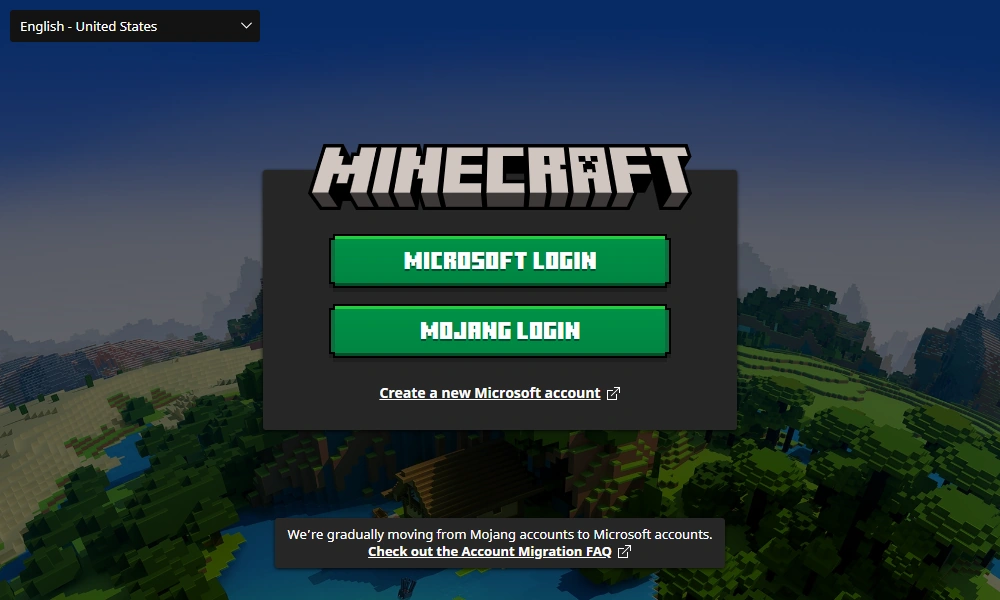
The initial login screen
On the initial login screen, users must log in with a pre-existing Microsoft account, otherwise they can create a new one by clicking the link. Subsequent logins can be done in the "Settings" tab. If a user attempts to log in with a Mojang Studios or legacy Minecraft account, they will be directed to migrate to a Microsoft account.
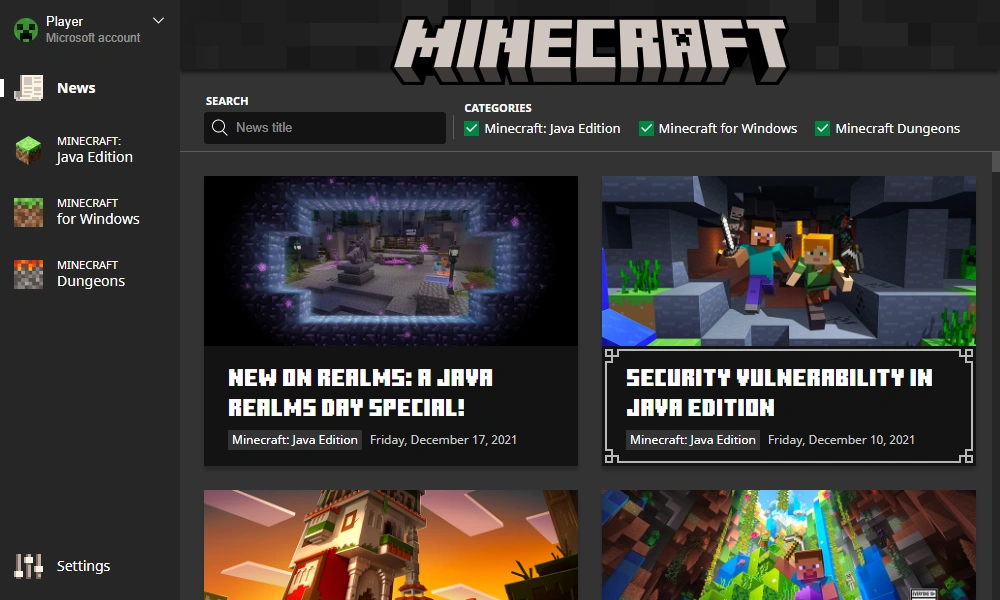
On the left side, a "News" tab, a tab for each game, and the Minecraft Launcher "Settings" tab can be seen.
The top left corner of the Minecraft Launcher contains the user's Xbox gamertag for the currently active account (which might differ from their Minecraft: Java Edition username)[2]. By clicking on it, users can manage or log out of their active account, and see a "Help" page with various links to helpful resources.
Minecraft: Java Edition
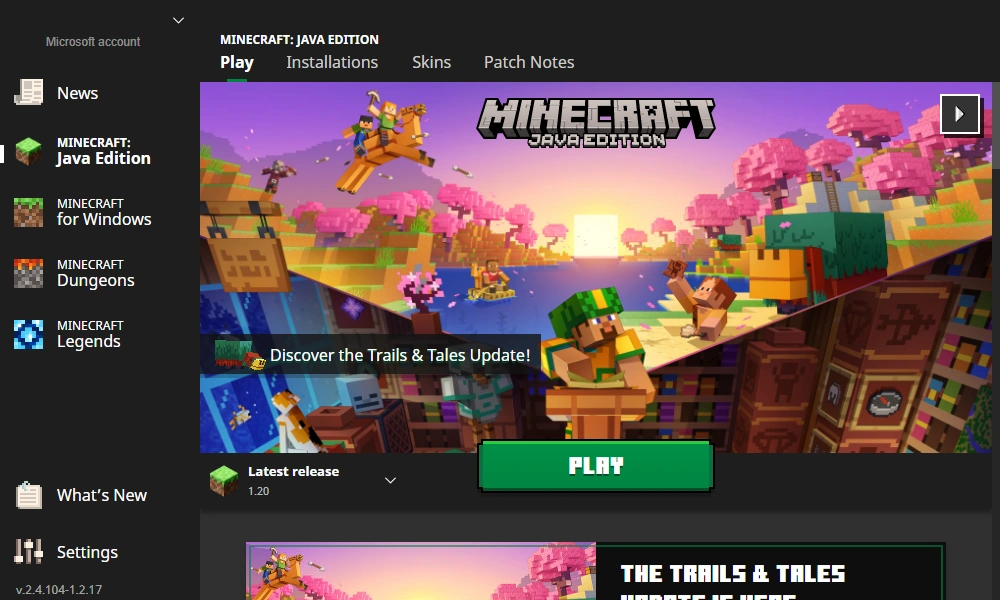
The main "Play" section allows the user to download (if needed) and launch Minecraft: Java Edition with the "Play" button, and also includes an installation selection on the left (which sorts installations by last played), the user's Java Edition username on the right, and a list of the latest news for the game from minecraft.net below.
- One can launch multiple instances of the game by pressing the "Play" button whilst the game is running.
- If the device is not connected to the internet, the game can be run in offline mode, but only if the game has been initially downloaded.
- If the user isn't logged into an account that has purchased the game, the "Play" button appears as a "Play demo" button that downloads and launches the demo version of the game.
There is also a "Patch notes" section where the patch notes of the game's update can be seen, including the snapshots (if enabled).
Installations
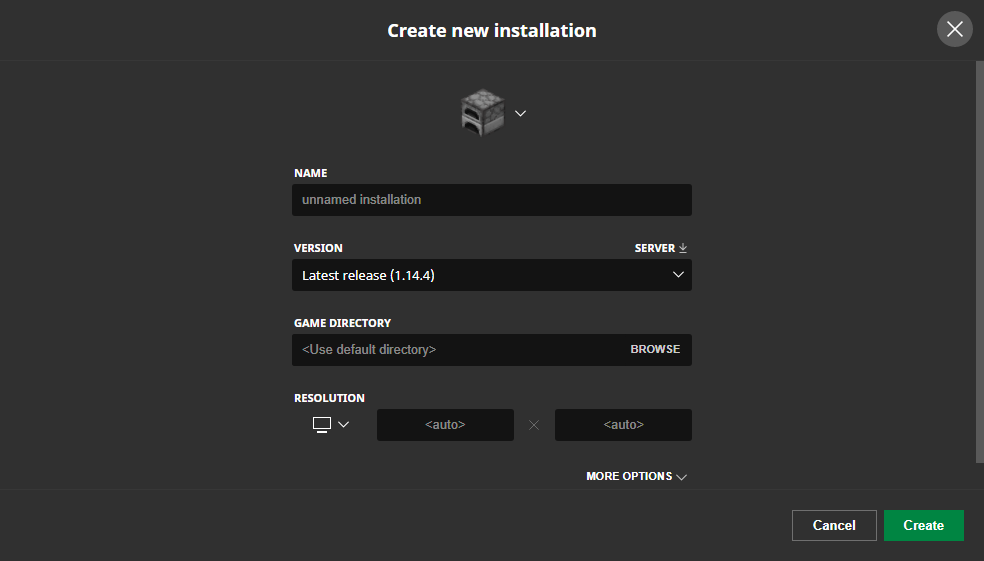
Creating a new installation.
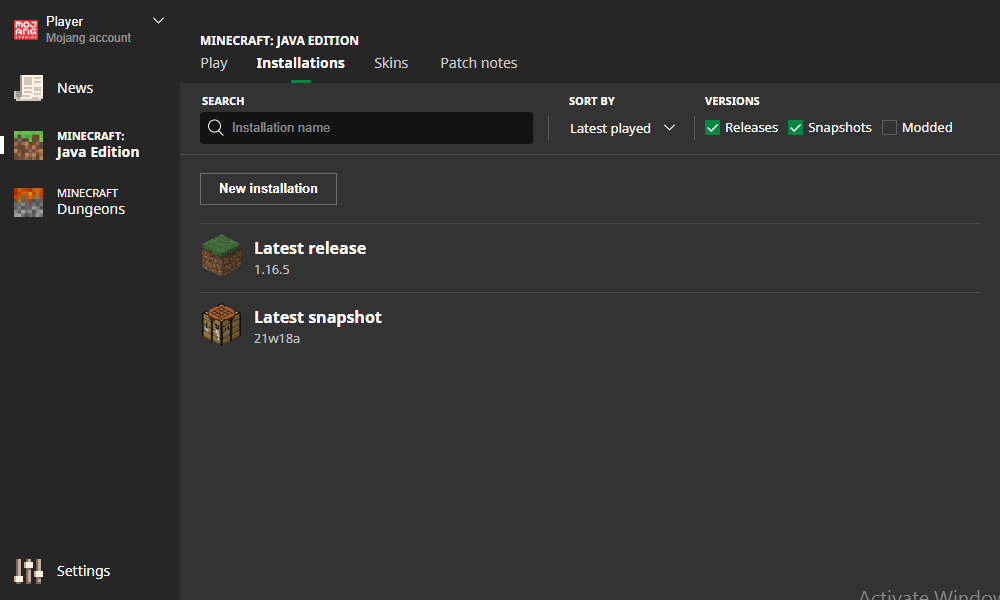
In the "Installations" section, custom installations can be created and edited. There are buttons to sort and search installations, as well as checkboxes to enable installations with "Releases", "Snapshot", and "Modded" versions of the game. Installations are stored in launcher_profiles.json (or launcher_profiles_microsoft_store.json when using the new Minecraft Launcher for Windows) in the game's directory (.minecraft).
By default, there are installations for the "Latest release" and for "Latest snapshot" (if enabled), both of which the game versions cannot be changed. A new installation can be created by clicking the "New installation" button and an existing installation can be edited by clicking on it. There is a "Play" button that launches the selected installation and a folder icon that takes to the installation's game directory. The ellipses button contains the options to edit, duplicate, or delete an installation.
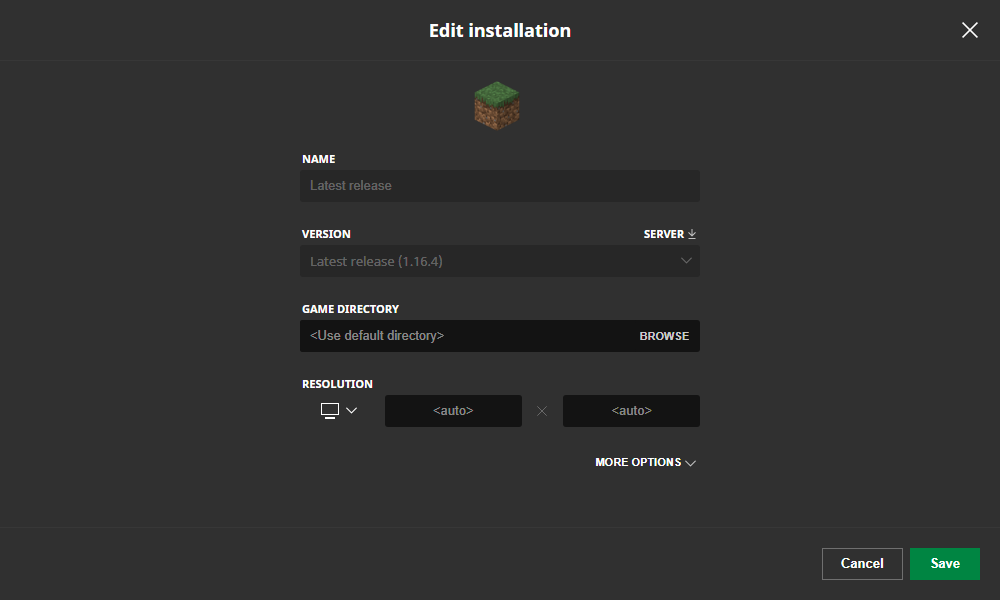
On the create/edit installation page, the following can be changed:
- Icon, by selecting one of the default ones or adding a custom one. Custom icons must be a .png and 128×128 pixels in size.
- Name, by default called "<unnamed installation>".
- Version, which includes access to older releases and snapshots (if enabled).
- Game directory, the location of where the game files are saved, the default being .minecraft. The location can be typed in or selected using the "Browse" button.
- Resolution, which changes the game's windows size. It has a list of resolutions, or a custom one can be typed in.
- Java executable, by default uses the bundled java runtime.
- JVM arguments, such as heap size.
Before, it was possible for the users to manually set a logging configuration (see Debugging on wiki.vg for more info), however this doesn't seem to work anymore.[3]
A specific game version's server jar can also be downloaded by selecting the version in the list and pressing the "Server" button next to it.
Backward compatibility
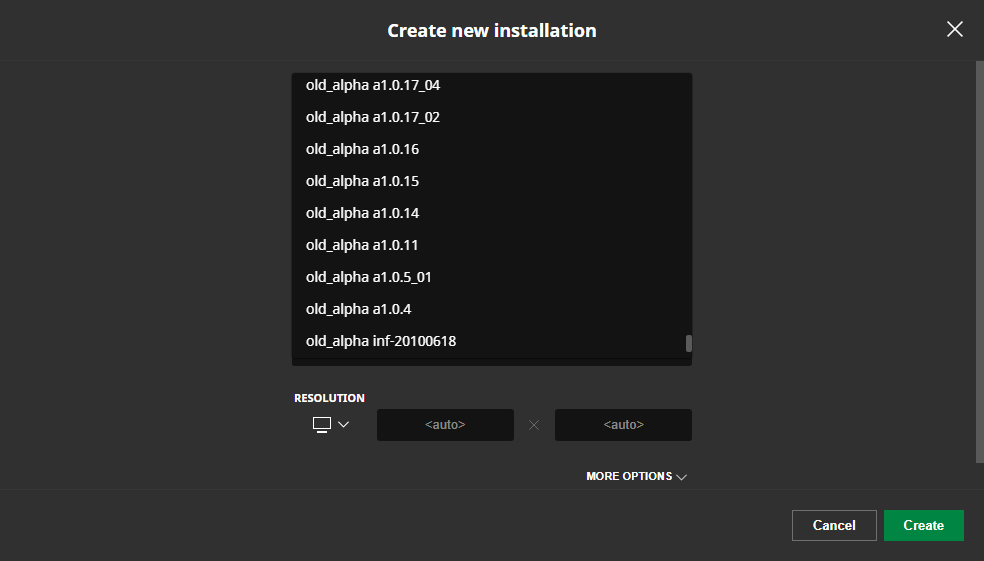
Selecting older versions in the create new installation screen.
The Minecraft Launcher has the ability to play most older releases of the game (and older snapshots, if enabled) by default, but also some older versions prior to Release 1.0. In order to see these versions in the installations section, the player must enable "Show historical versions of Java Edition" in the Minecraft Launcher settings tab. Because these versions are outdated and unsupported, they may contain bugs and errors that are not present in newer versions. It is recommended to run old versions of the game in a separate directory and backup worlds to avoid save corruption or other problems.[4]
Once historical versions are enabled, the following can be accessed:
- Most beta versions.
- Most alpha versions.
- One infdev version.
- Four classic versions.
- Five pre-classic versions.[5]
Some issues with these older versions include:
- Some sounds are wrong; bows, doors, and explosions use their sounds from RC1, even in versions released prior to it. In versions before Alpha 1.1.2_01, sounds do not work at all.
- Skins are missing in versions prior to 1.7, as earlier versions used a different skin server, which has since been shut down. Capes may still work, however.[needs testing]
- In Alpha 1.0.15 and from Alpha 1.2.0 to Alpha 1.2.6, the Minecraft Launcher does not set the player's name properly, resulting in everyone using default names: "Player" followed by a random 3-digit number. This makes multiplayer difficult to play, as a player's location and inventory is reset every time they relaunch their client.
- In Alpha 1.2.5 and Alpha 1.2.6 specifically, players are always named "Player524". Playing multiplayer in these versions is impossible, as joining a server kicks off other players with the same name.
- As a side effect of the above, and as a result of old authentication servers being shut down, online mode no longer works in versions before Beta 1.8.
Skins
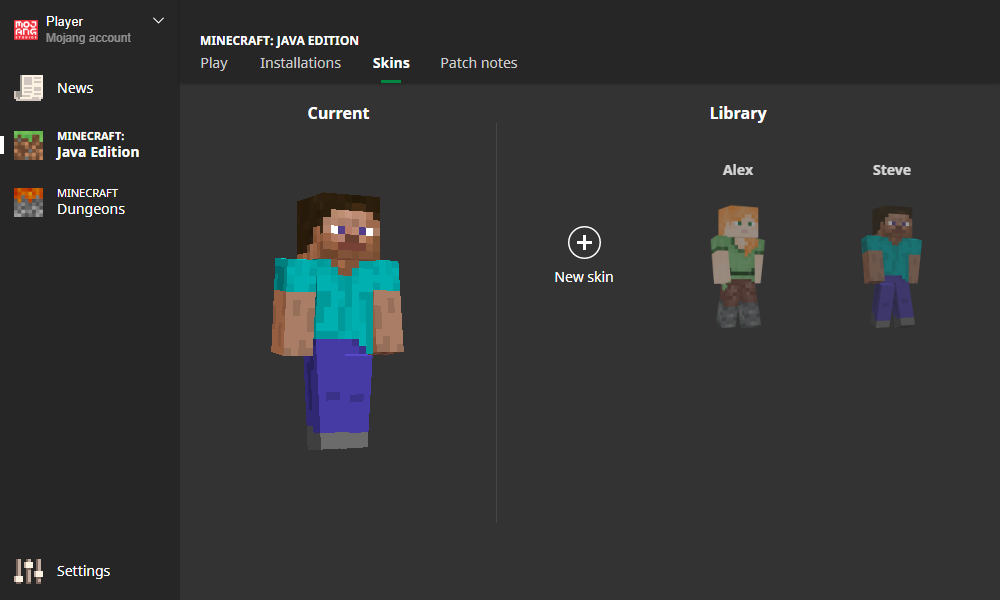
The skins section
In the "Skins" section, the user can view and change their in-game skin. By default, the skin is either Steve, Alex, Noor, Sunny, Ari, Zuri, Makena, Kai, or Efe.
In the skins library, skin can be applied by clicking "Use". The skin can also be edited, duplicate, or delete by clicking the ellipsis button. By default, the library contains the default Steve, Alex, Noor, Sunny, Ari, Zuri, Makena, Kai, and Efe skins, which can be duplicated or applied, but not removed.
Visiting this section without purchasing the game displays a button that redirects to the Minecraft: Java Edition store page.
Minecraft for Windows
The main "Play" section allows the user to download (if needed) and launch Minecraft for Windows (Bedrock Edition) with the "Play" button, and also includes the user's Xbox Gamertag on the right, and a list of the latest news for the game from minecraft.net below.
- If the device is not connected to the internet, the game can be run in offline mode, but only if the game has been initially downloaded.
- If the user is on an unsupported device, a warning appears with a link to a website with supported devices.
- If the user isn't logged into an account that has purchased the game, the "Play" button appears as a "Play demo" button that links the player to Microsoft Store to download and launch the demo version of the game.
There is a "Preview" tab to play Minecraft Preview, an "FAQ" section with frequently asked questions and answers about the Minecraft Launcher and Minecraft for Windows (Bedrock Edition), an "Installation" section to repair or uninstall the game, and a "Patch notes" section where the patch notes of the game's updates can be seen (not including beta versions).
Minecraft Dungeons
There are 5 tabs on the Minecraft Dungeons page: Play, DLC, FAQ, Installation, and Patch notes. (Only Play, DLC, and Patch notes are shown on an unsupported platform.)
Play
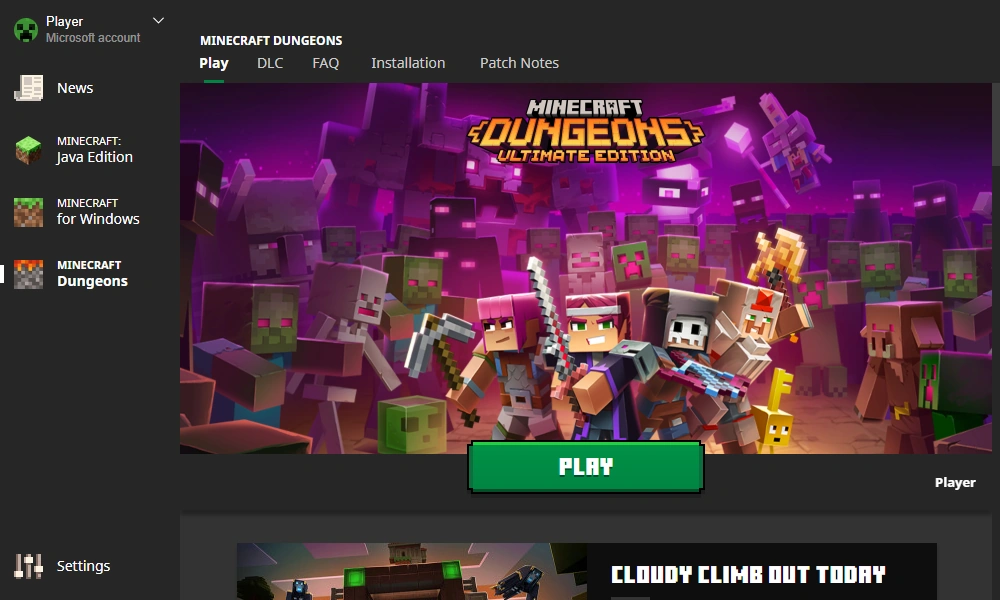
The default view of the Minecraft Dungeons section in the Minecraft Launcher.
The main "Play" section allows the user to download (if needed) and launch the latest version of Minecraft Dungeons with the "Play" button, and also includes images from the game and a list of the latest news articles from minecraft.net below. This section also contains a notice that the game can be purchased separately from Microsoft Store for Windows. If the player is not playing on the supported platform, a small message on the bottom is shown that displays: Where is the play button?! Minecraft Dungeons isn't available on (platform).
DLC
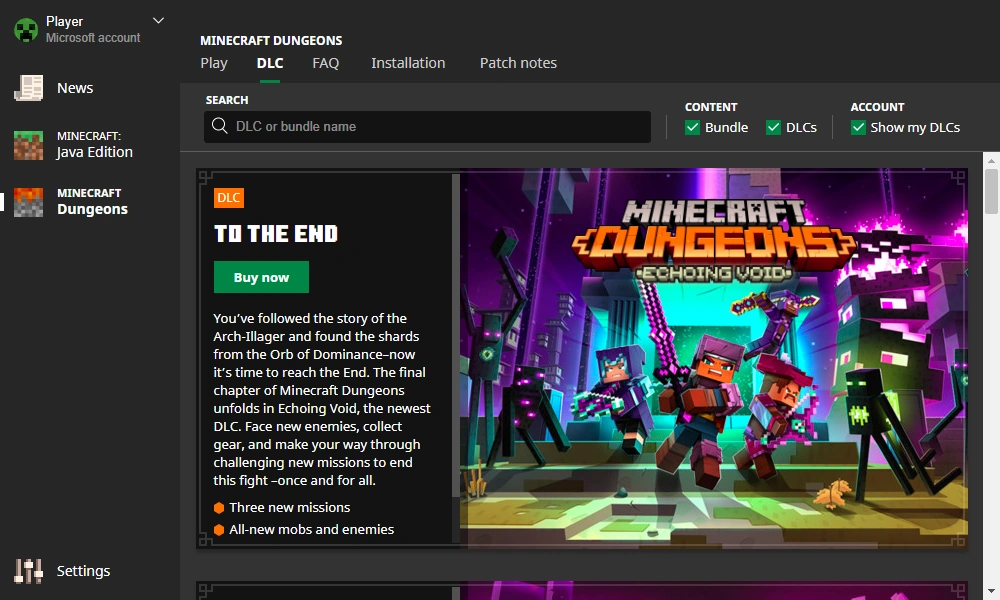
The DLC tab on the Minecraft Dungeons page in the Minecraft Launcher.
There is a search bar and a filter option to narrow down the results when searching the DLCs. The bundle or/and the DLCs can be shown by checking the box.
Each DLC is shown in a card-like structure with the DLC info on the left and a cover image on the right. There is also a slideshow on the bottom of the card.
FAQ
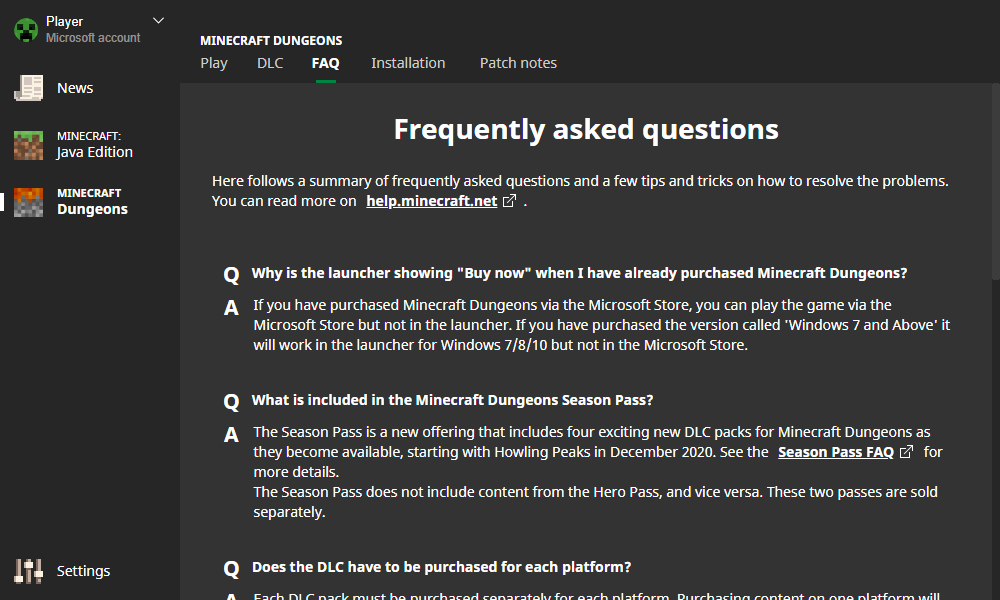
The FAQ tab in Minecraft Dungeons on the Minecraft Minecraft Launcher.
The FAQ section is shown when pressing the FAQ tab. There is a list of troubleshooting sections and a link to the Minecraft Dungeons FAQ on the Minecraft Help Center.
Installation
Visiting this section without the game purchased displays a button that redirects to the Minecraft Dungeons buy page. If bought, it shows an uninstall button and a repair button.
Patch Notes
This section shows cards of the patch notes. Each card contains an image on top and the text below stating the name of the patch notes. When clicked, this displays the patch notes.
Settings
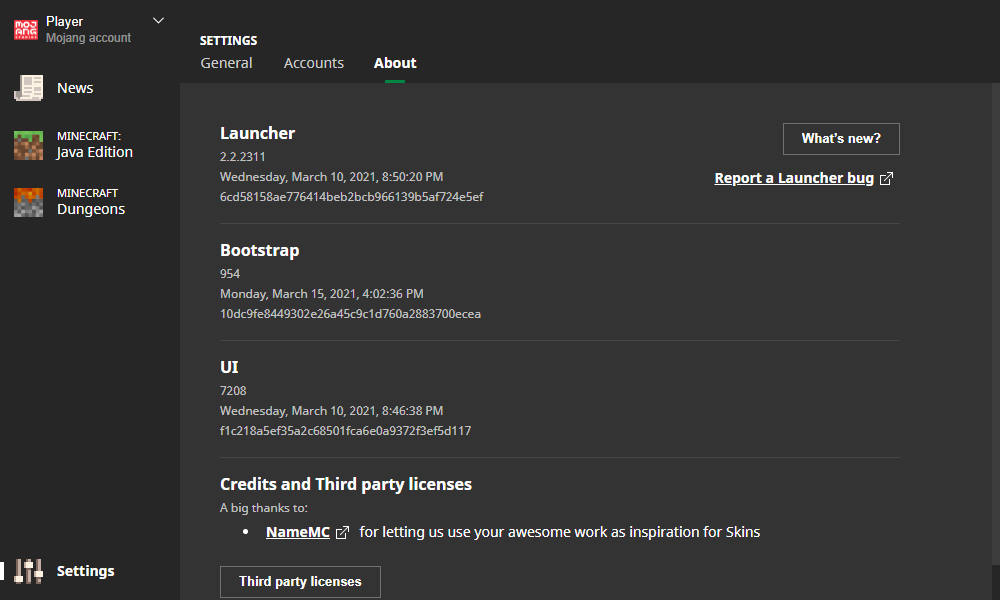
The "About" section in the Minecraft Launcher settings.
In the main "General" section, users can:
- Change the Minecraft Launcher language. There are 66 languages available, including 2 joke languages (as of February 2021).
- Use the beta version of the Minecraft Launcher, which requires restarting the launcher to start downloading if there is one available.
- Keep the Minecraft Launcher open while games are running.
- Enable animations in the Minecraft Launcher, which are disabled by default to avoid potential motion sickness for some users.
- Disable hardware acceleration.
Options exclusively for Minecraft: Java Edition:
- Open the output log when the game starts.
- Option to automatically send the game's crash reports to Mojang Studios.
- Show historical versions of the game (versions prior to Release 1.0) in the version selector in the Installations section.
In the "Accounts" section, users can add, switch, manage, or remove their Microsoft accounts.
The "About" section contains details about the Minecraft Launcher including its version, credits, and third-party licenses, as well as a list of patch notes by clicking the "What's New?" button.
Command line usage
The Minecraft Launcher can be invoked using the command line by typing %ProgramFiles(x86)%\Minecraft Launcher\MinecraftLauncher.exe in Windows or minecraft-launcher in either Mac or Linux.
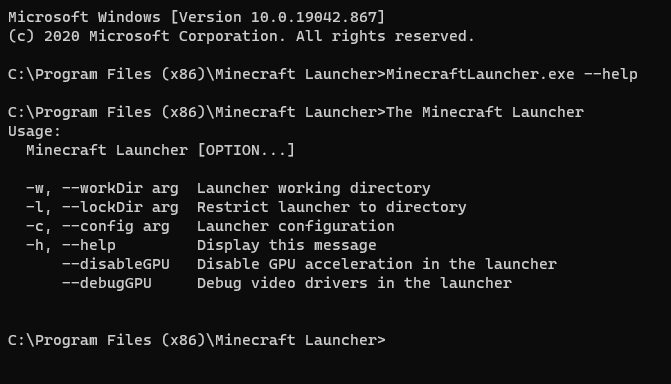
The Help Message when using MinecraftLauncher.exe --help
As of version 2.2.25xx, the Minecraft Launcher has these command-line options available for Minecraft: Java Edition:
--demo- This launches the demo version of the game, much like if the game hasn't been purchased yet.-h, --help- This option displays a help message on how to run it in the command line.--clean– This option deletes the "game" and "runtime" folders, including their contents, from the working directory.--launcherui- This option presents the login screen.-w, --workDir– This option, followed by a path (relative or absolute), changes the location (and/or name) of the .minecraft folder.- Can be used to create a portable installation of the game. For example,
--workDir(or--workDir=.) can be used to make the Minecraft Launcher use the current directory (no matter what the current folder is called).
- Can be used to create a portable installation of the game. For example,
--nativeLauncherVersion- .--tmpDir– This option, followed by a path (relative or absolute), changes the location (and/or name) of the tmp folder.-l, --lockDir- This option, followed by a path, restricts the installation directory to a specified folder.--winTen– This option adds support for Windows 10. Since the Minecraft Launcher now supports Windows 10 fully, this option is unnecessary and seems to have no effect.--proxyHost- This option changes where the host of the proxy is.--proxyPort- This option changes the default port from80to a custom one.--disableGPU- This disables GPU acceleration in the Minecraft Launcher, which might fix issues when playing minecraft.--debugGPU- This opens up a new window showing debug information, like "Graphic Feature Stats", which shows if Hardware acceleration is enabled on certain features, and an option to copy the content to the clipboard. These might be useful for troubleshooting purposes.
Uninstalling the old Minecraft Unified Launcher
Source: "Uninstalling the Old Minecraft Unified Launcher" – Minecraft Help Center.
This applies only to players using Windows 10 or newer. Older versions of Windows are not able to use the new Minecraft Launcher for Windows. With the addition of a new launcher, you can uninstall the old launcher to remove any confusion between the two. For clarity, the new launcher is referred to as the "Minecraft Launcher for Windows" and the old launcher as the "Minecraft Unified Launcher".
How to uninstall the Minecraft Unified Launcher (old launcher):
- Click the start menu in Windows (windows icon in the bottom left).
- Type in "Add or remove programs" and click the top entry.
- Search for "Minecraft Launcher". The launcher to uninstall displays Mojang underneath the title "Minecraft Launcher".
- Click the three dots shown to the left of the "Minecraft Launcher" title and select "Uninstall".
Now only one launcher should be installed. Run the Minecraft Launcher for Windows to ensure it still works; if it doesn't, reinstall using Microsoft Store.
Launcher or game mods may need to be migrated or re-installed to the new Minecraft Launcher for Windows installation location before uninstalling the old launcher. Check with the mod developer for more detail.
History
| Java Edition Alpha | |||||
|---|---|---|---|---|---|
| v1.0.0 | Initial release. In this version, users can choose not only the current version but also Infdev. | ||||
| The client requires an internet connection on the first run and for updates, but after that, the game supports playing offline. | |||||
Command line arguments are accepted to launch the game. Using the format java -cp Minecraft.jar net.minecraft.LauncherFrame username password allows login without joining a server, while the format java -cp minecraft.jar net.minecraft.LauncherFrame username password serveraddress:portnumber allows joining a server. | |||||
| v1.2.2 | Command line arguments format changed. | ||||
| Java Edition Beta | |||||
| 1.3 | Released in February 21, 2011.[6] A technical sneak preview was published by Notch on February 18, 2011.[7] | ||||
| Added capability of automatic login to the game and/or server by command line arguments. | |||||
| Added smarter update system that updates only changed files, prompts the user to update, allows HTTPS logins for a more secure connection, and offers general UI improvements. | |||||
| Link to the Minecraft install directory for easy access. | |||||
| Added Force Update button under the Options dialog. | |||||
| The Minecraft Launcher also featured an inline "changelog" via a Tumblr called MCUpdate, and supports command-line arguments.[8] | |||||
| Added the new Minecraft logo. | |||||
| Added official links, community links and Mojang on Twitter links. | |||||
| Java Edition | |||||
| 1.2.1 | Properly selects 64-bit Java installations for macOS users.[9] | ||||
| 1.3.2 | Added ability to launch demo mode for non-premium users. | ||||
| 1.6.1 | 13w16a | New launcher added. | |||
| 1.14 | New 'beta' launcher added. See Launcher version history for version history from this point onward. | ||||
| February 24, 2020 | With launcher version 2.1.1382x, patch notes for the Launcher are added to the About section. | ||||
| October 21, 2020 | It is announced that Java Edition will soon be using Microsoft accounts for added security enhancements. With this, all Mojang Studios accounts will be migrated to Microsoft accounts.[10][11] Since December 1, 2020, new players are no longer able to sign up for a Mojang Studios account; they are instead required to use or create a Microsoft account to buy and play the game. | ||||
| November 27, 2020 | With launcher version 2.2.74x it is now "Unified" and one can now log in with a Microsoft Account and launch Minecraft Dungeons, which previously required a separate launcher. | ||||
| October 16, 2021 | The Minecraft PC Bundle is announced at Minecraft Live 2021 to be added to Xbox Game Pass for PC. The bundle includes Minecraft Launcher for Windows (the new Minecraft Launcher) available from Microsoft Store on Windows 10/11,[12] and will for the first time include Minecraft: Bedrock Edition in addition to Minecraft: Java Edition and Minecraft Dungeons. | ||||
| March 10, 2022 | Mojang Studios and Legacy Minecraft accounts are no longer supported to play games in the launcher, and user who still haven't migrated to Microsoft accounts are directed to do so. | ||||
| The legacy Minecraft Launcher (version 1.6.x) is discontinued (along with support for Windows XP and Vista) since this launcher does not support Microsoft accounts. | |||||
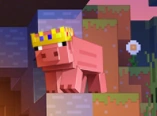
| July 2, 2022 | A crown had been added to the pig on the menu image in memoriam of the popular YouTuber Technoblade, whose death from Stage 4 cancer had been announced 2 days prior. | ||||
| August 23, 2022 | Minecraft Preview is added to the Launcher. | ||||
Trivia
- In version 2.2.2529 release notes there's text that reads: T⍑ᒷ ᔑ ̇/𝙹ꖎ𝙹ℸ ̣ ꖎᓭ ᔑ∷ᒷ リ𝙹ℸ ̣ ∴⍑ᔑℸ ̣ ℸ ̣ ⍑ᒷ|| ᓭᒷᒷᒲ - which translates to "THE AXOLOTS ARE NOT WHAT THEY SEEM".
- Both Alpha and Classic versions of Minecraft: Java Edition are listed as "old_alpha", despite them not being the same.[13]
- The Minecraft Launcher doesn't store passwords locally. Instead, it uses a 'refresh token'.
- The current Minecraft Launcher is the eighth launcher for Minecraft: Java Edition, and the third that was built to automatically update itself.
- Game crashes are reported to Mojang Studios through Hopper.
- The legacy Minecraft Launcher can be downloaded here (version 1.6.93, ~4.6MB as opposed to the modern launcher's ~85MB). However, the legacy Minecraft Launcher is incompatible with Microsoft accounts and was discontinued in Q2 2021 due to account migration.
- In version 2.3.240, the pig on the Minecraft Launcher screen was given a crown in light of popular Minecraft YouTuber Technoblade passing away due to cancer.
Gallery
-
 Minecraft Launcher for Windows app icon
 -
 Minecraft Unified Launcher app icon
 -
 Minecraft Launcher Microsoft Store square key art
 -
 Minecraft Launcher Microsoft Store vertical key art
 -
 Minecraft Launcher Microsoft Store horizontal key art
 -
 Minecraft Launcher for Windows splash screen
 -
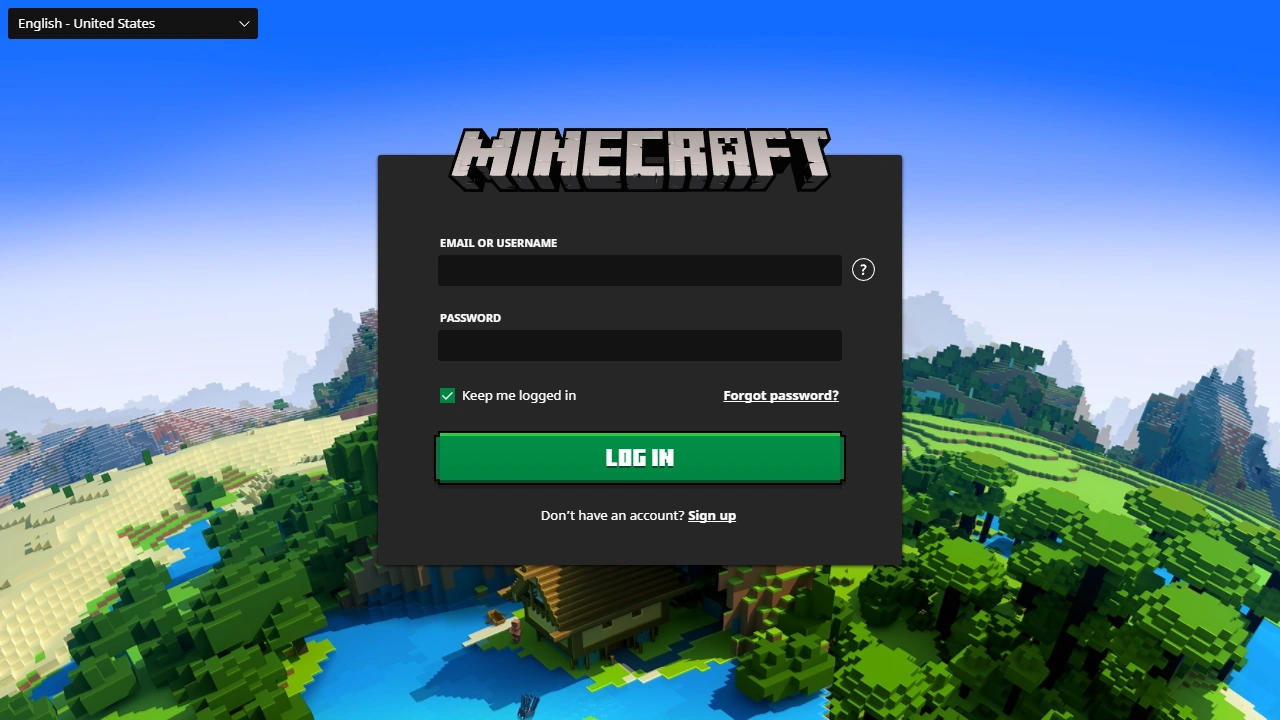
 The initial login screen
 -
 The News tab
 -
 The Minecraft: Java Edition tab
 -
 The Minecraft Dungeons tab
 -
 The "About" section in the launcher settings.
 -
 Close up of the pig with Technoblade’s crown.


Minecraft: Java Edition
-
 The default installations section (with snapshots enabled).
 -
 Editing an installation.
 -
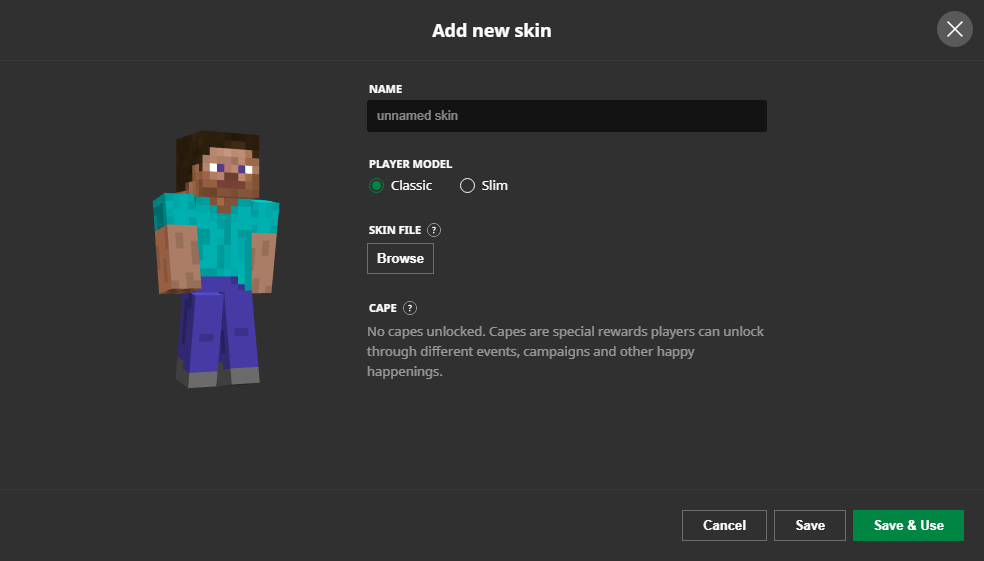
 Adding a new skin.
 -
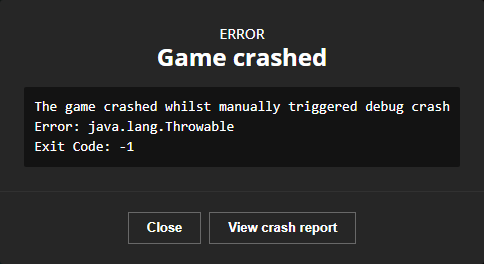
 A game crash
 -
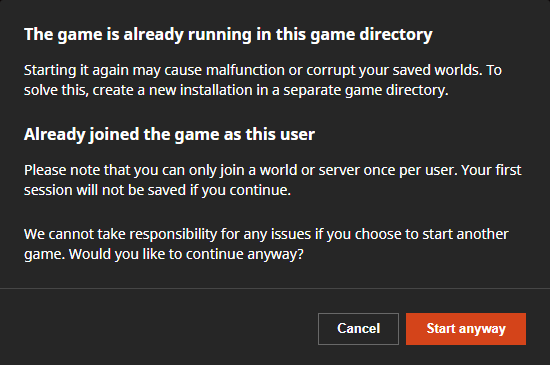
 A warning about running another copy of the game if it is already running.
 -
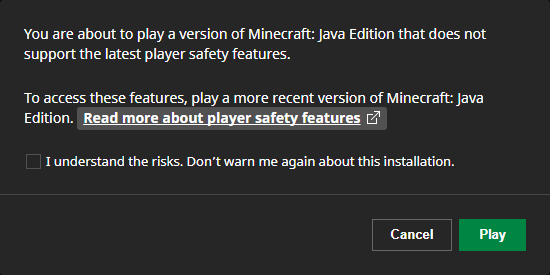
 A warning about playing a version that doesn't support the latest player safety features.
 -
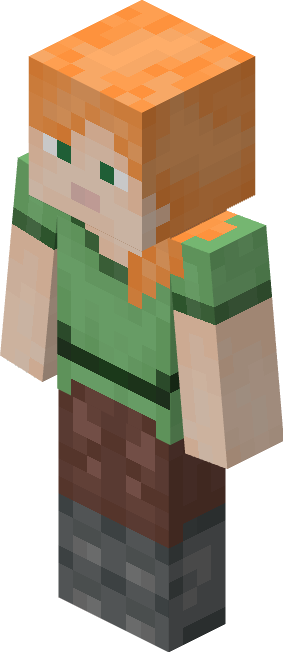
 A removed Alex skin that used to represent the default Alex on the Skins tab. Selecting this would simply give the player the default one instead.
 -
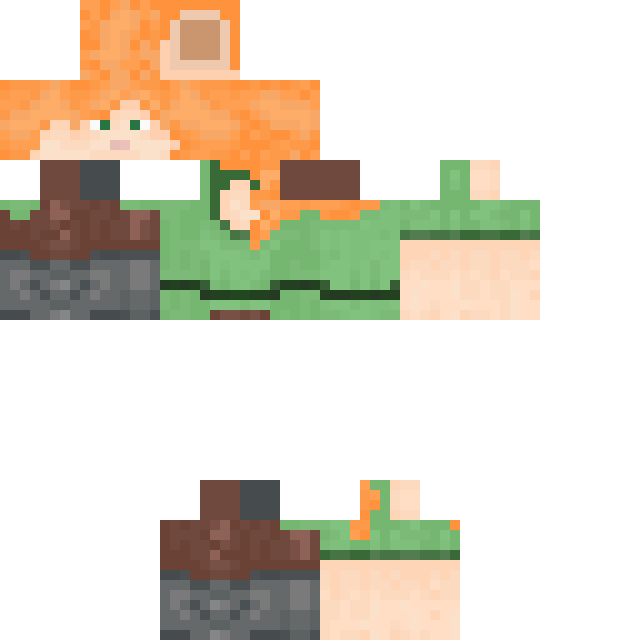
 A texture recreation of the removed Alex skin.
Backgrounds
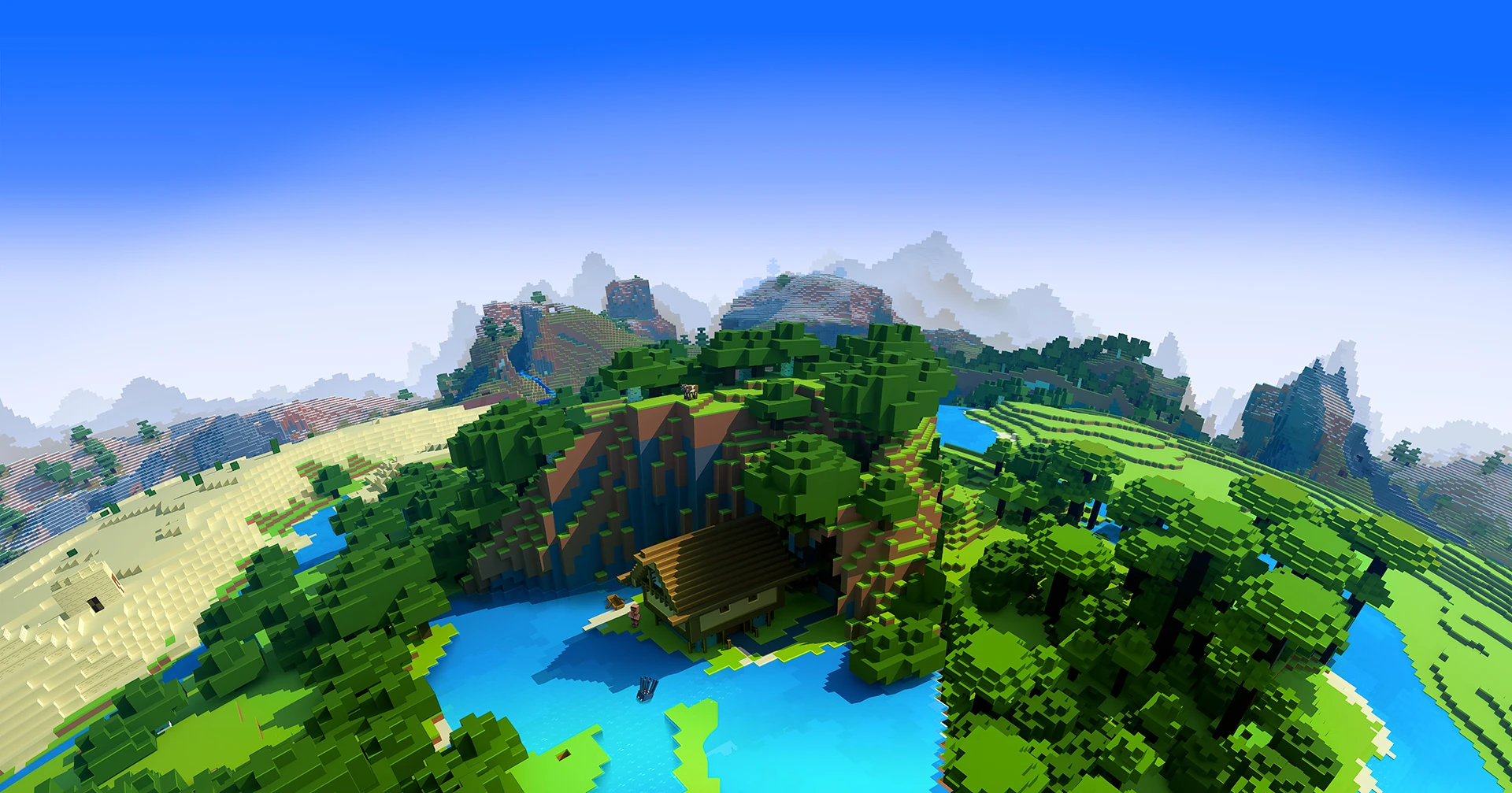
-
 The background for the initial login screen.
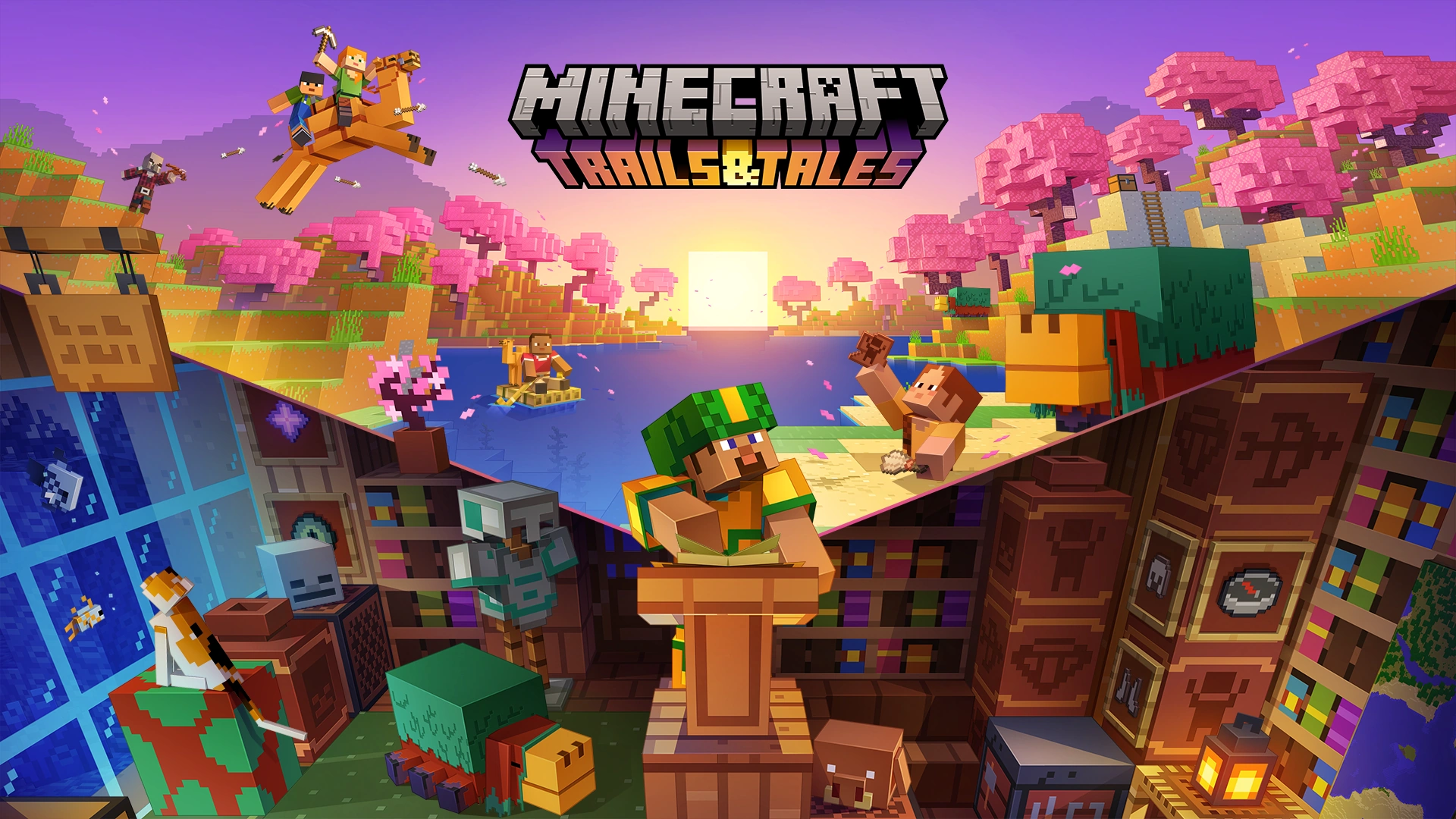
 -
 The background for Java Edition and Bedrock Edition.
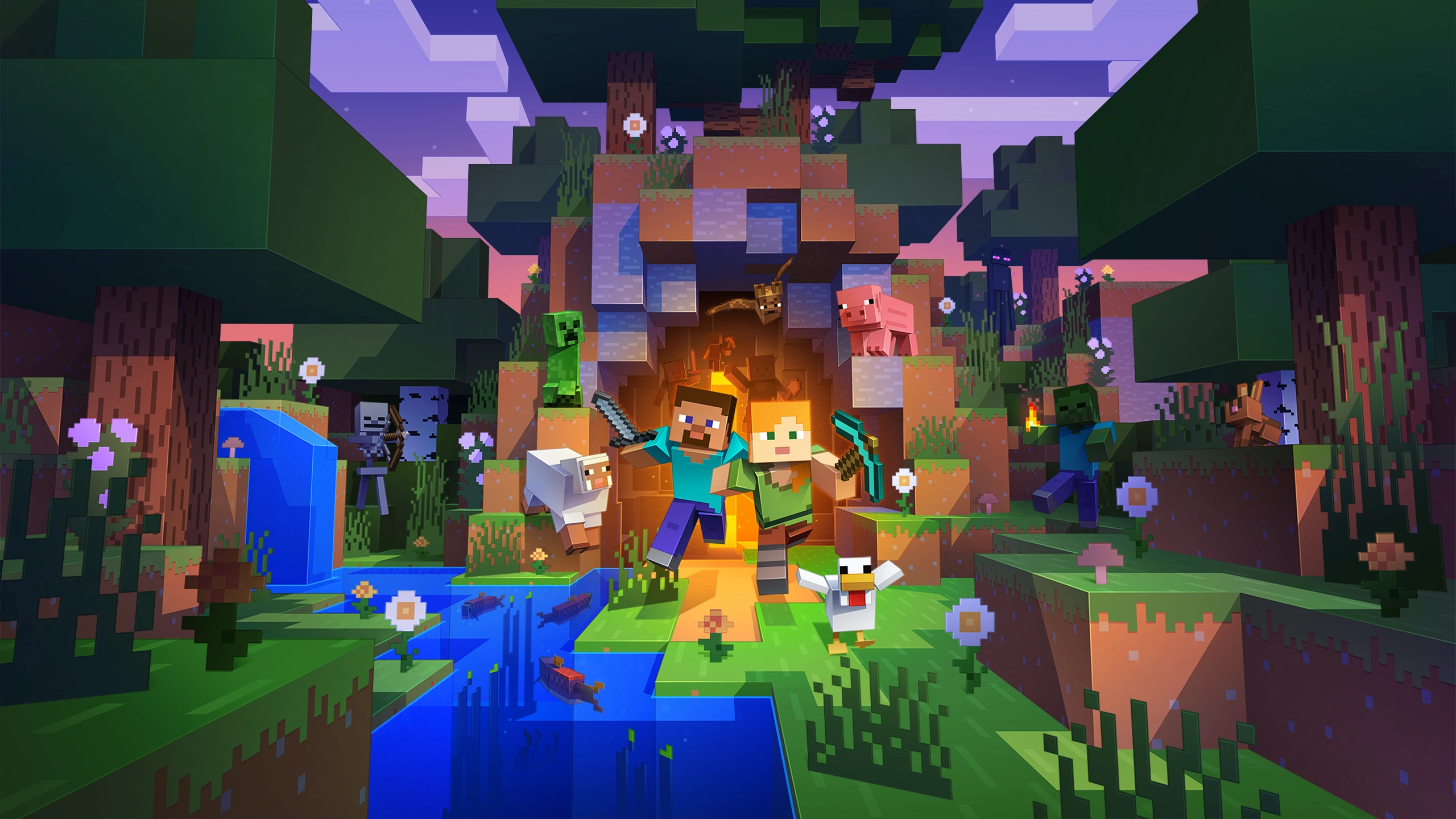
 -
 The background for Java Edition and Bedrock Edition when not purchased.
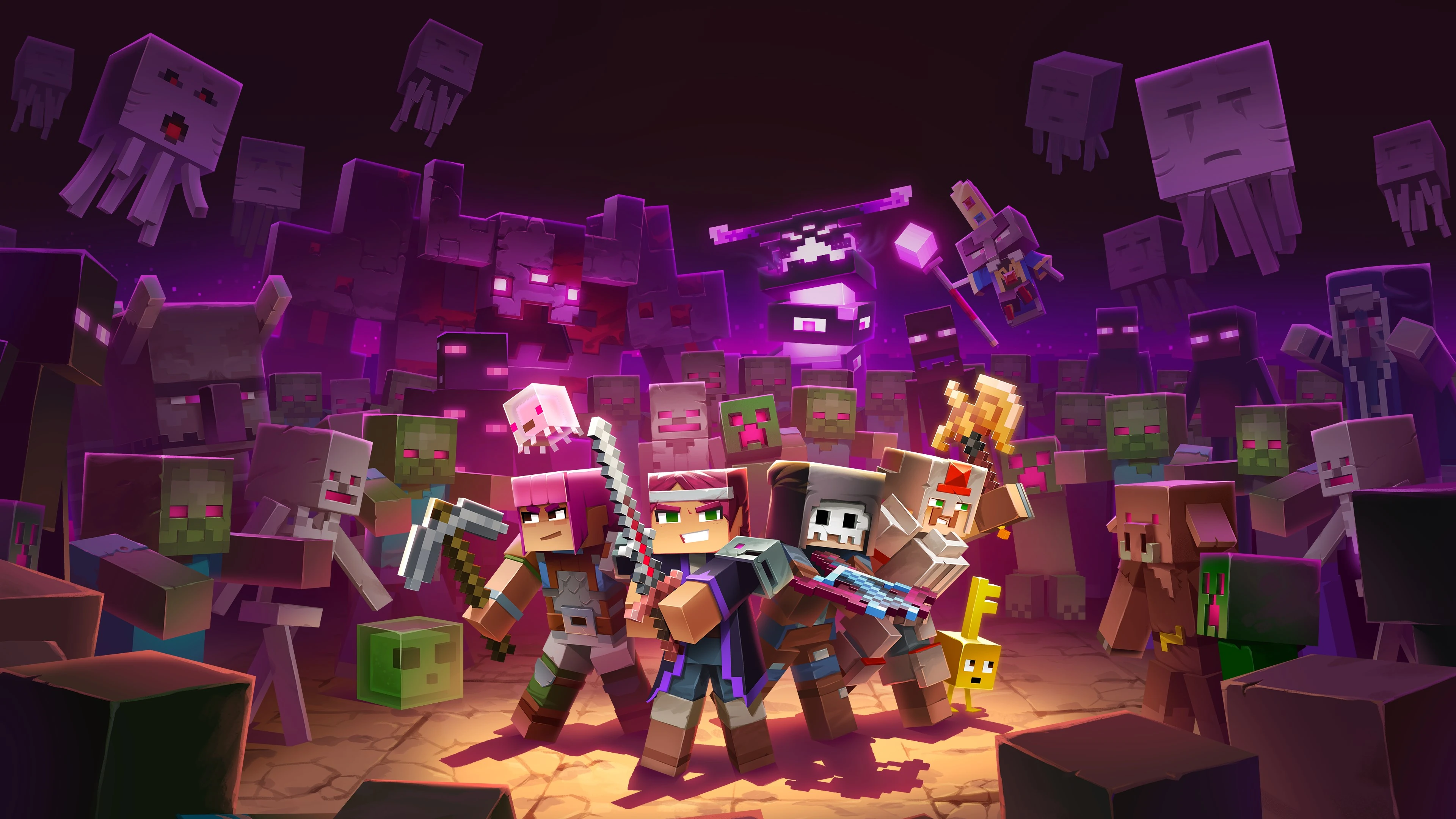
 -
 The background for Minecraft Dungeons.
Version history
-
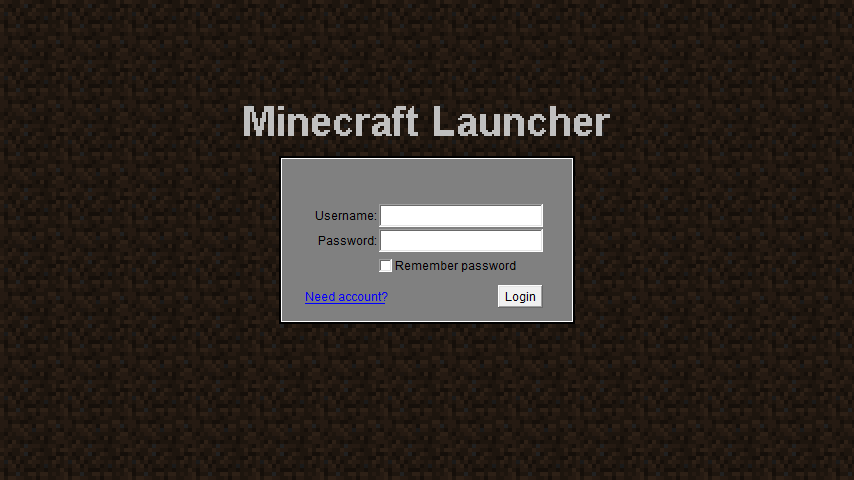
 The first Minecraft Launcher
 -
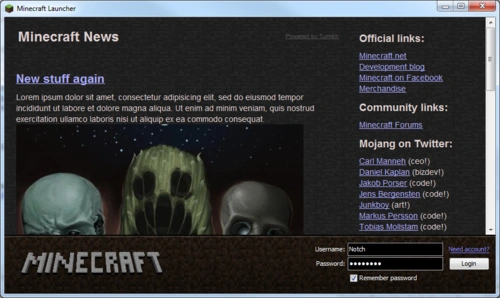
 In-development image of the second launcher, from Notch's blog.
 -
 The second Minecraft Launcher. The old Minecraft logo can be seen.
 -
 The third Minecraft Launcher
 -
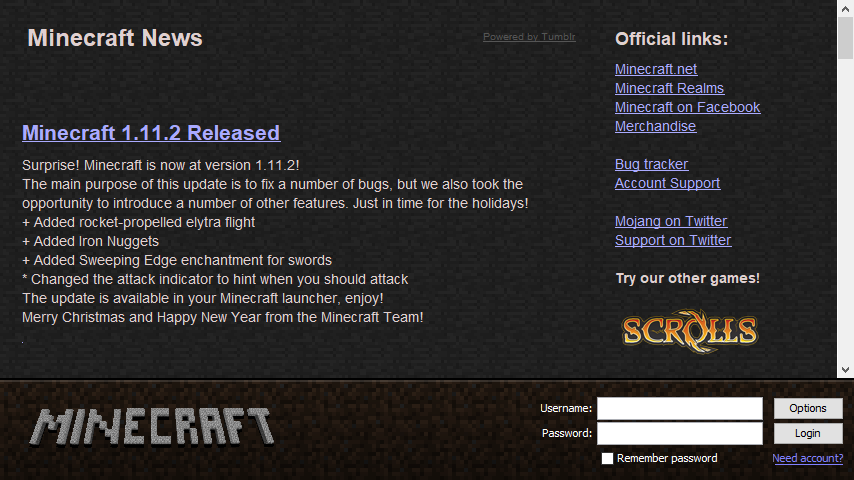
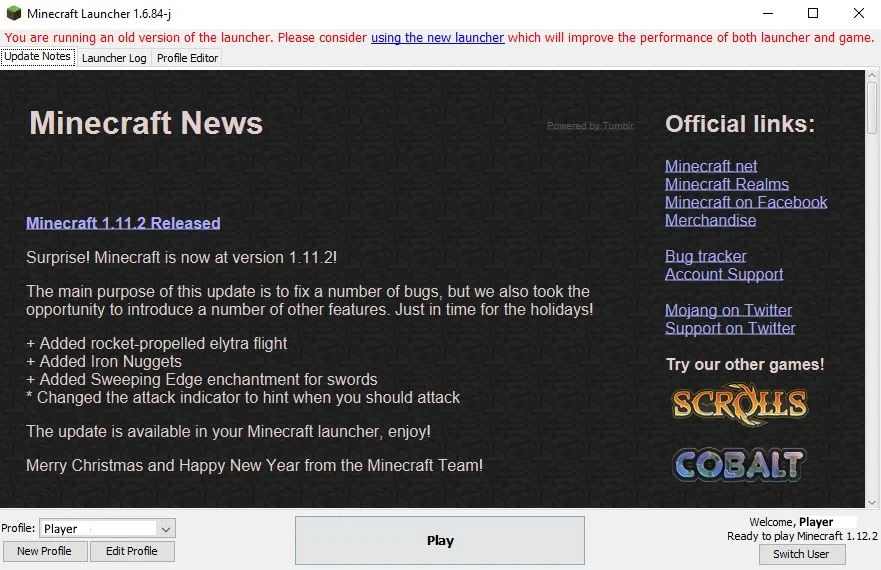
 The fourth Minecraft Launcher, version 1.0.
 -
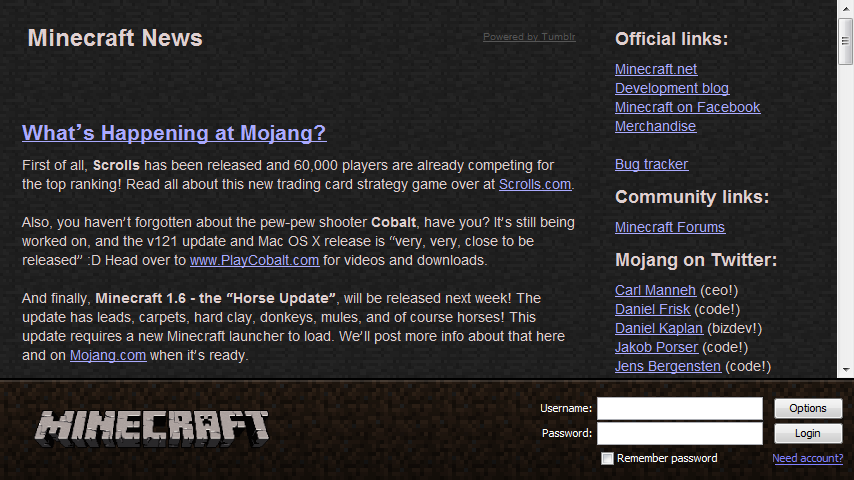
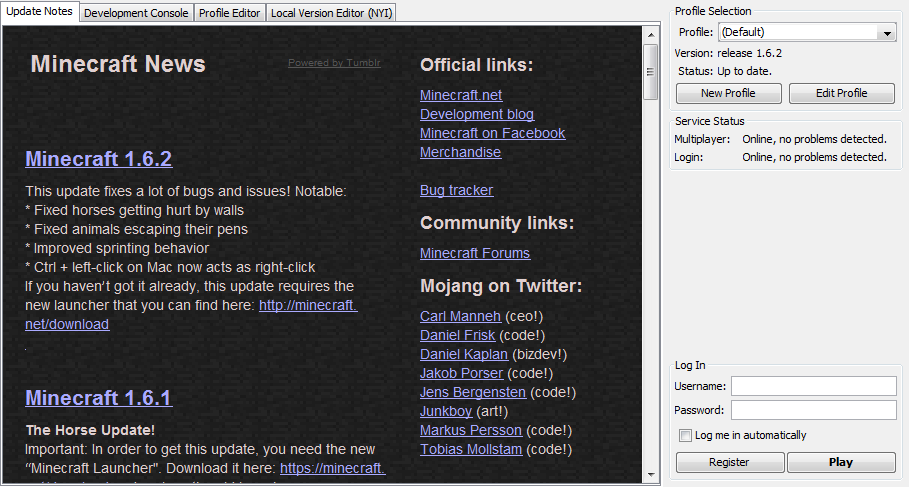
 The fifth Minecraft Launcher, version 1.6.
 -
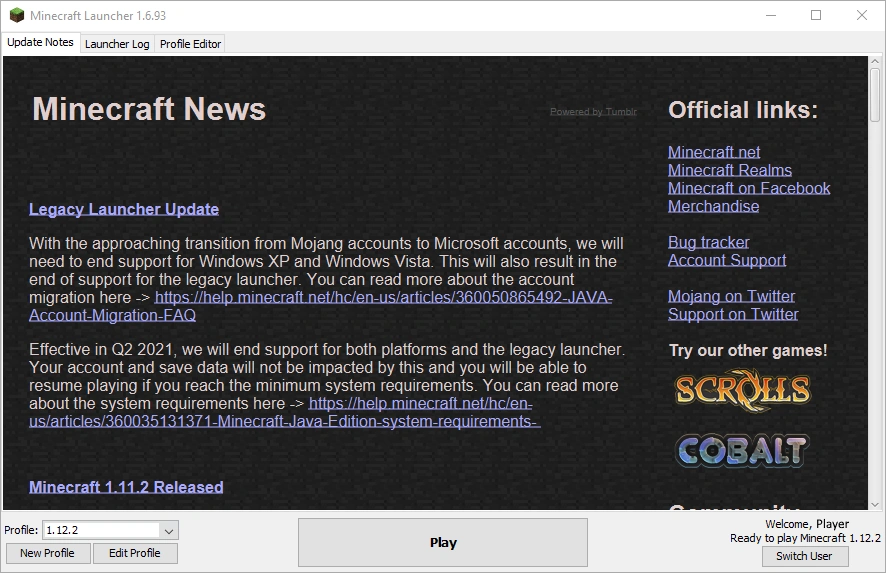
 The last update to the Legacy Minecraft Launcher, version 1.6.93.
 -
 The sixth Minecraft Launcher, version 2.0.
 -
 The sixth Minecraft Launcher, version 2.0 - login menu.
 -
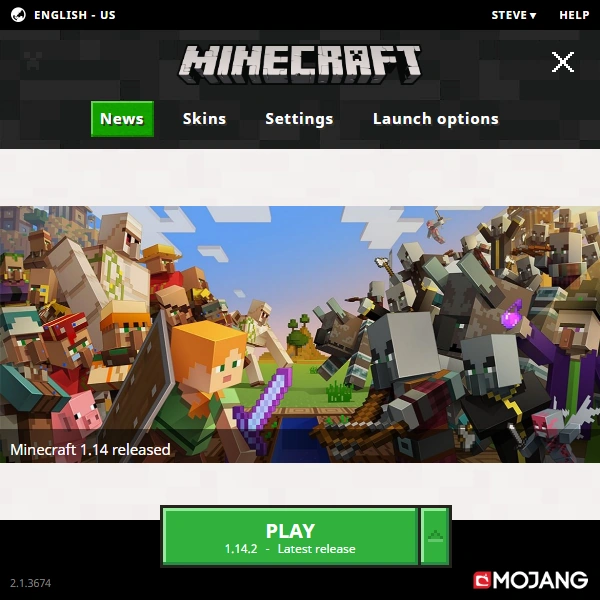
 The seventh Minecraft Launcher, version 2.1.
 -
 The seventh Minecraft Launcher, version 2.1 - login menu.
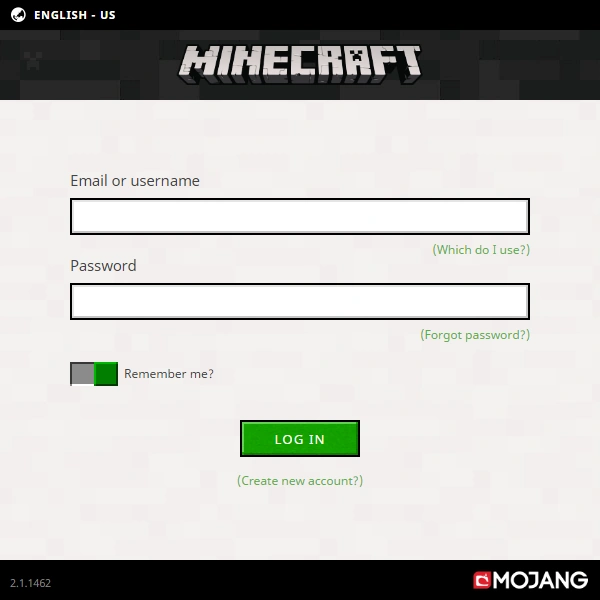
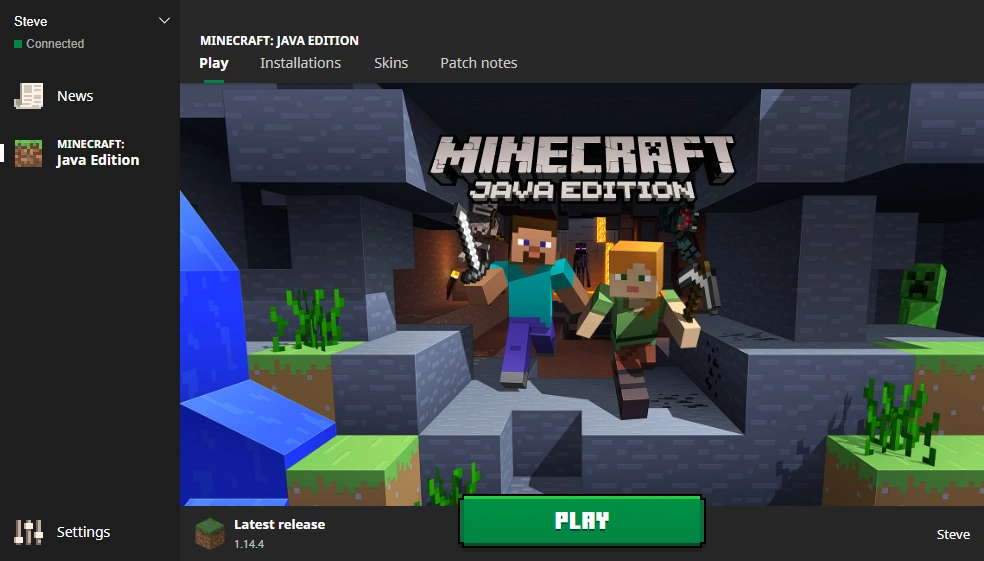
2013–16
-
 The 2013 launcher in development.
 -
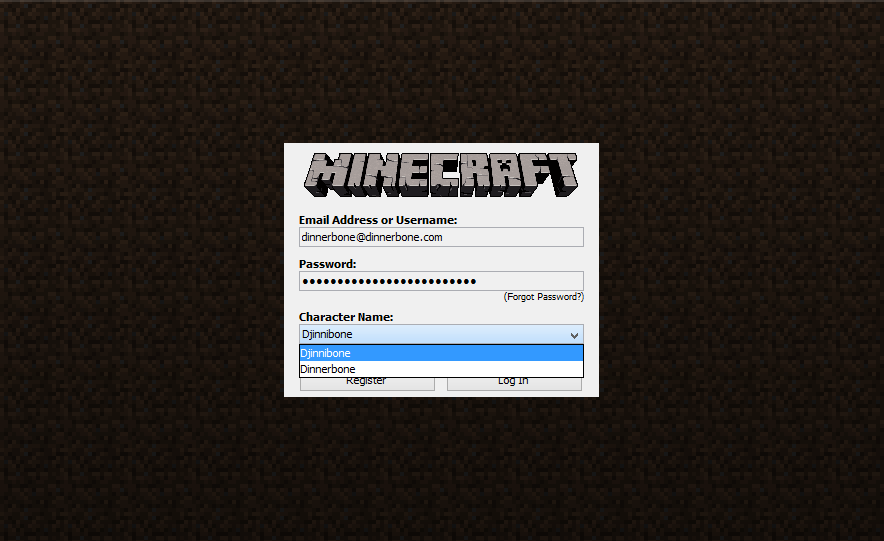
 Dinnerbone logging into the launcher.
 -
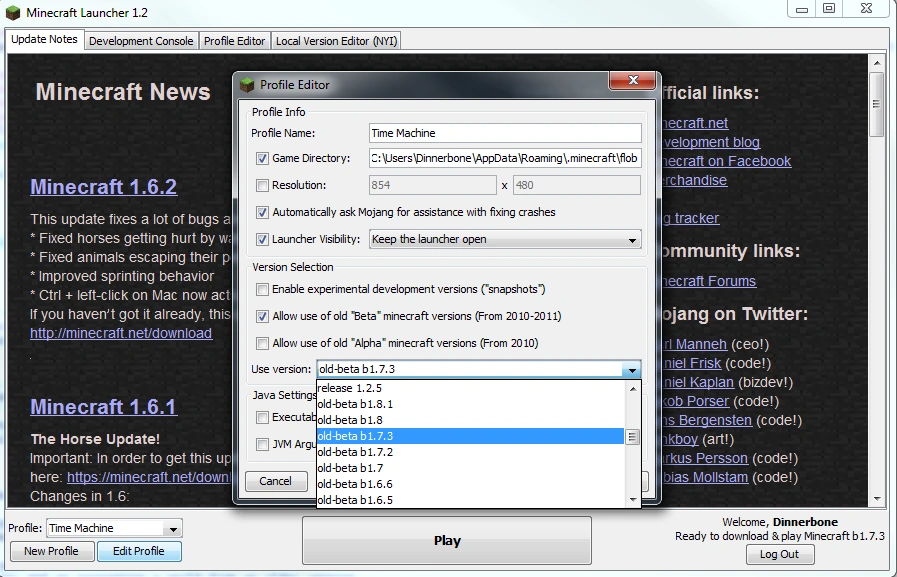
 Selecting beta versions in the launcher.
 -
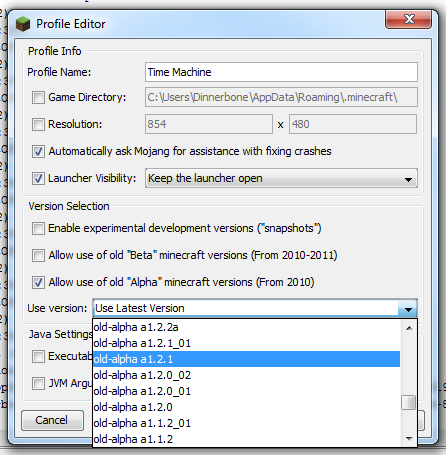
 Selecting alpha versions in the launcher.
 -
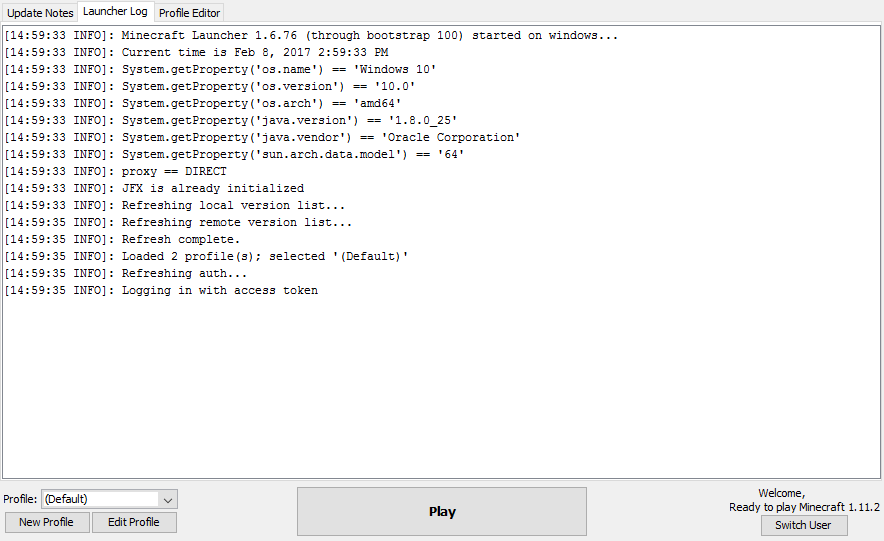
 The Launcher Log tab after the Launcher starts
 -
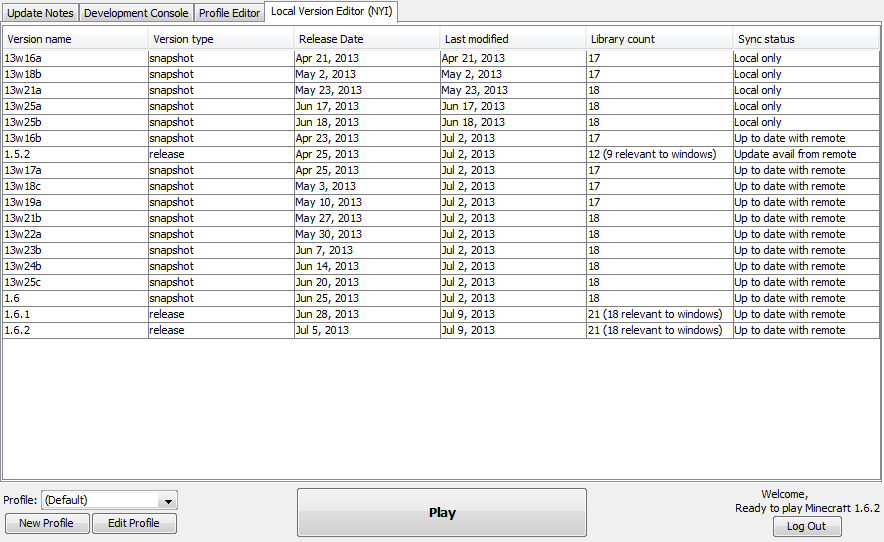
 The Local Version Editor (NYI) tab (replaced by Time Machine)
 -
 Error message that is displayed if a development launcher is outdated
 -
 Error message that is displayed if an old launcher is opened after using the 9.0 launcher
 -
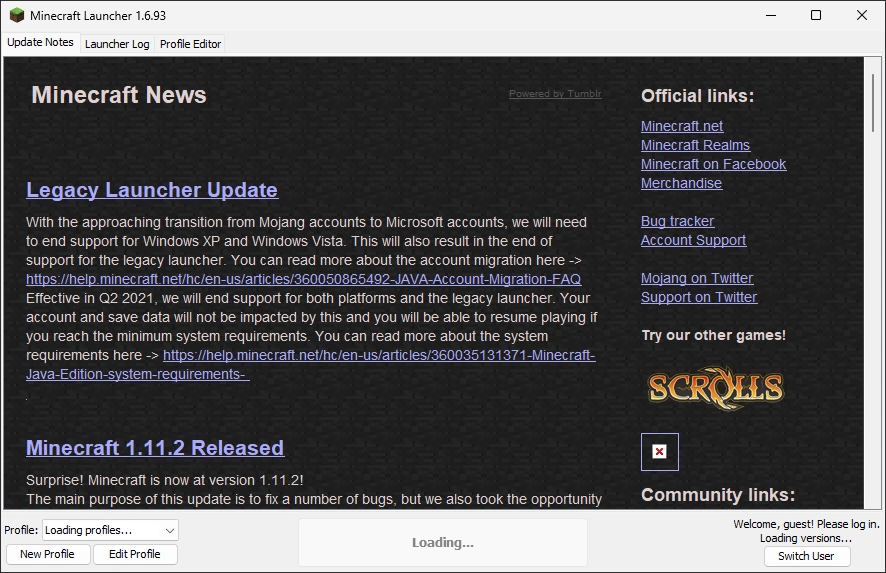
 Notification for the end of support for the launcher.
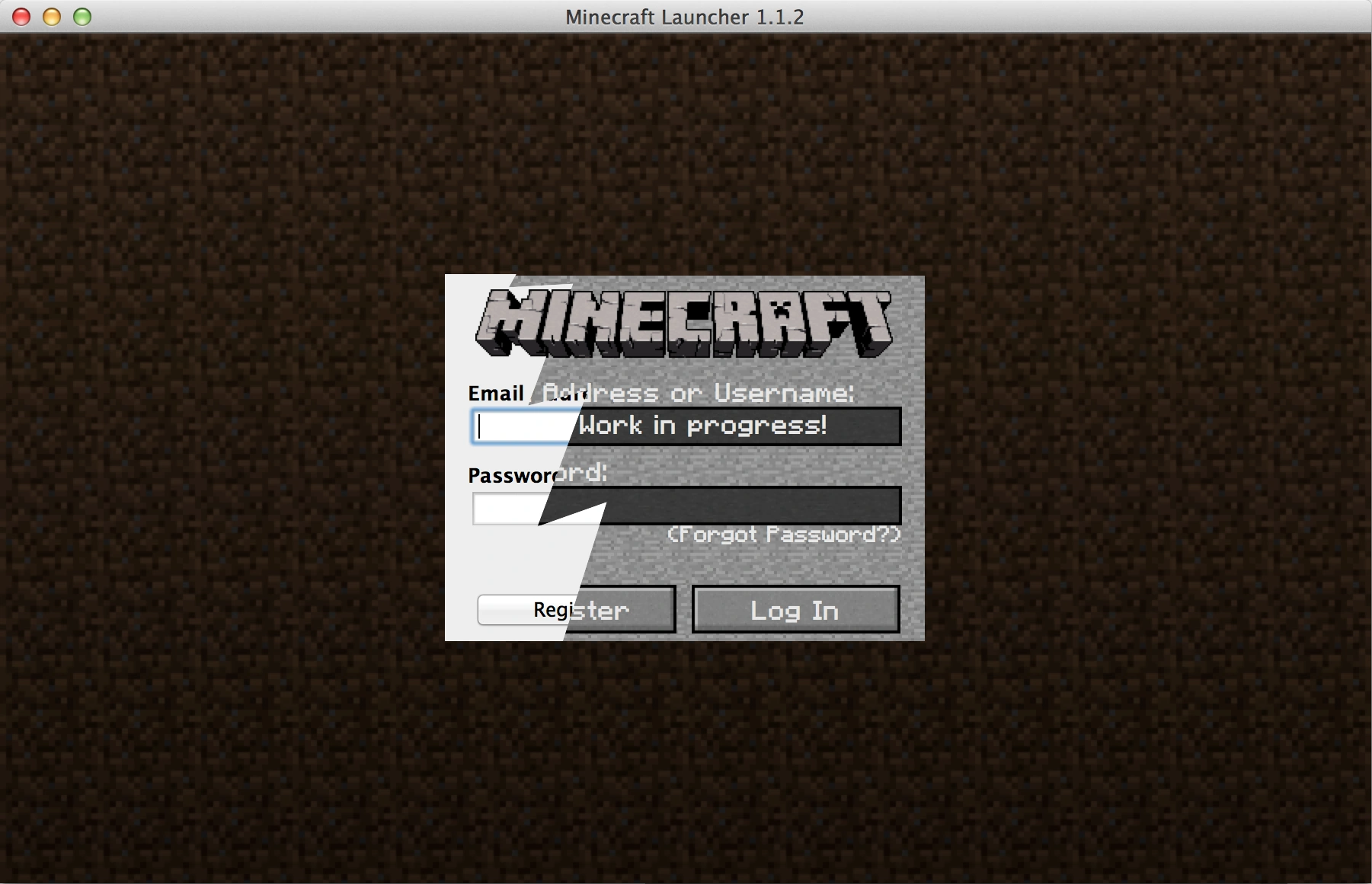


2016–19
-
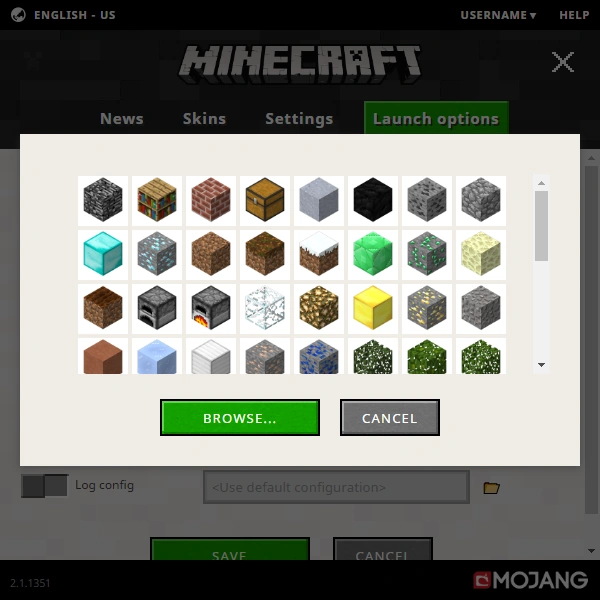
 Profile icons selection from the launcher.
 -
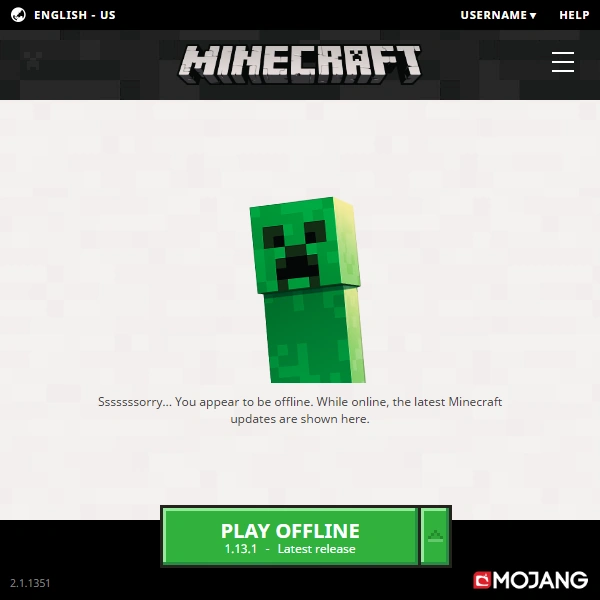
 Launcher in offline mode
 -
 The Help page
 -
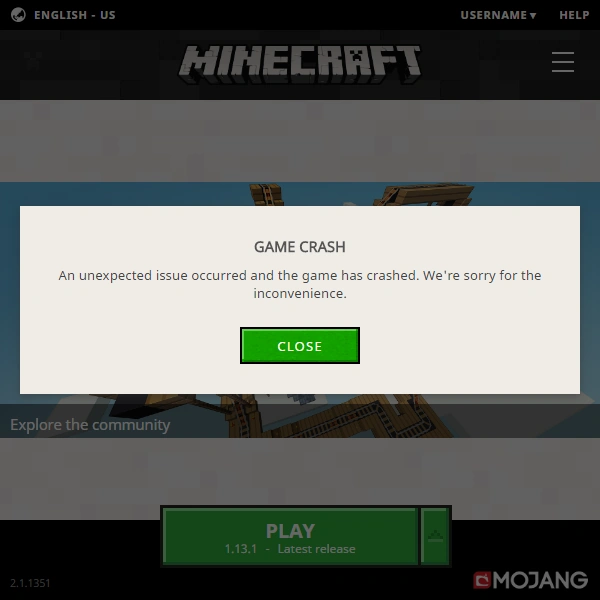
 Game crash
 -
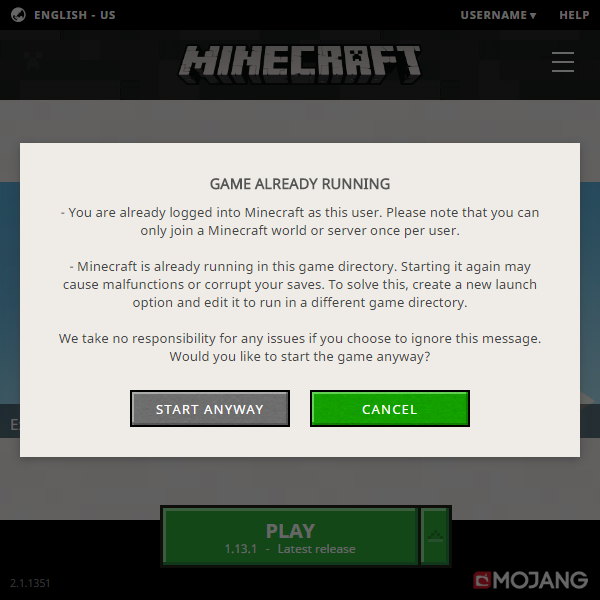
 Launcher warning about running another copy of Minecraft if it is already running.
 -
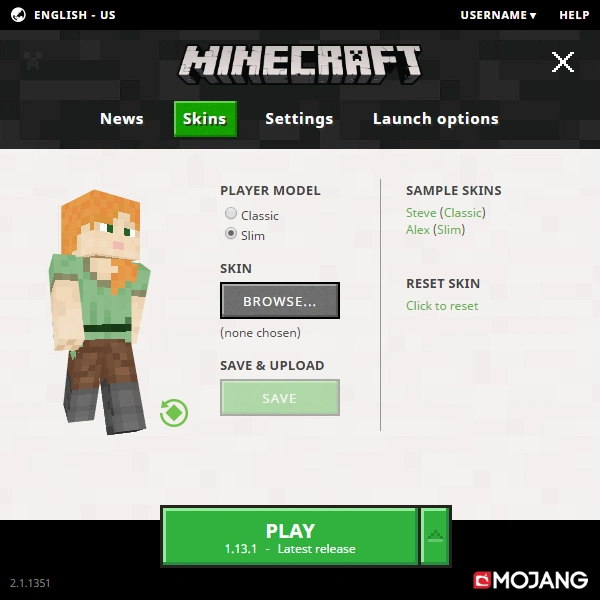
 Older skin options.
 -
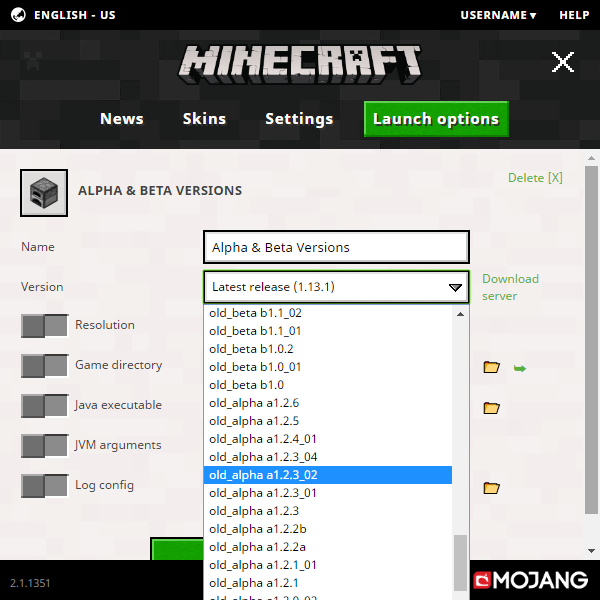
 Selecting an older version.
 -
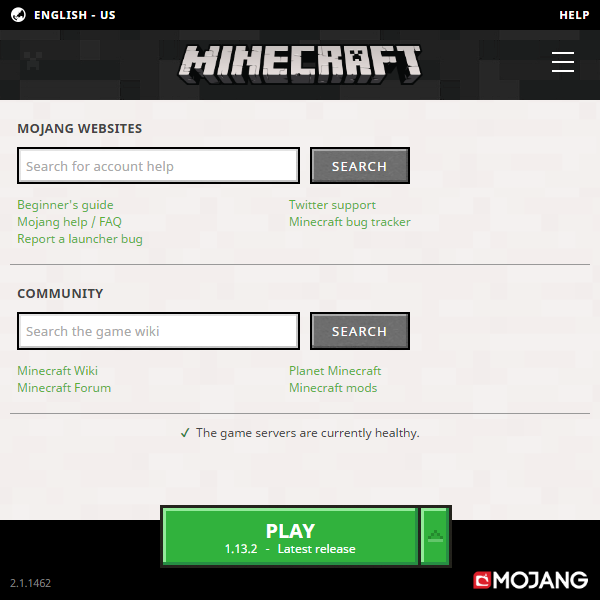
 The shrug emoji that sometimes appeared at the top left corner.
 -
 The Creeper face that sometimes appeared at the top left corner.


References
- ↑ " We're expanding our Minecraft Launcher team! We have a lot of exciting plans and are looking for another senior C++ developer to help make them happen. Know someone interested? Send them our way!" – @Dinnerbone (Nathan Adams) on X, September 6, 2018
- ↑ https://help.minecraft.net/hc/articles/360052640612
- ↑ MCL-17489
- ↑ "Changing game versions" – Minecraft Help Center.
- ↑ "2 classic versions, an infdev version and a version before minecraft was called minecraft have been added to the launcher!" – @Dinnerbone (Nathan Adams) on X, August 6, 2013
- ↑ Server downtime, and a new Launcher
- ↑ "This requires some technical know-how" – @notch (Markus Persson) on X, February 18, 2011
- ↑ "Welcome to the new Minecraft Launcher" – MCUpdate, February 21, 2011, Tumblr
- ↑ Minecraft 1.2 is Out! – Mojang.com, March 1, 2012
- ↑ "Java Edition is moving house" – Minecraft.net, October 21, 2020.
- ↑ "Mojang Java Account Move" – Minecraft.net.
- ↑ Minecraft Launcher | Xbox
- ↑ MCL-9589
See also
| Developers | |||||||||||||||
|---|---|---|---|---|---|---|---|---|---|---|---|---|---|---|---|
| Games |
| ||||||||||||||
| Launchers |
| ||||||||||||||
| Films |
| ||||||||||||||
| Books |
| ||||||||||||||
| Board games | |||||||||||||||
| Other media | |||||||||||||||
| Annual events |
| ||||||||||||||
| Official merchandise | |||||||||||||||
| Crossovers |
| ||||||||||||||
| Related games | |||||||||||||||