Note: Bedrock info
Downgrading is the act of loading a world in an older version than the version of that world last loaded. Downgrading is dangerous; it causes the world to be prone to corruption, data loss or crash.
Downgrading screen
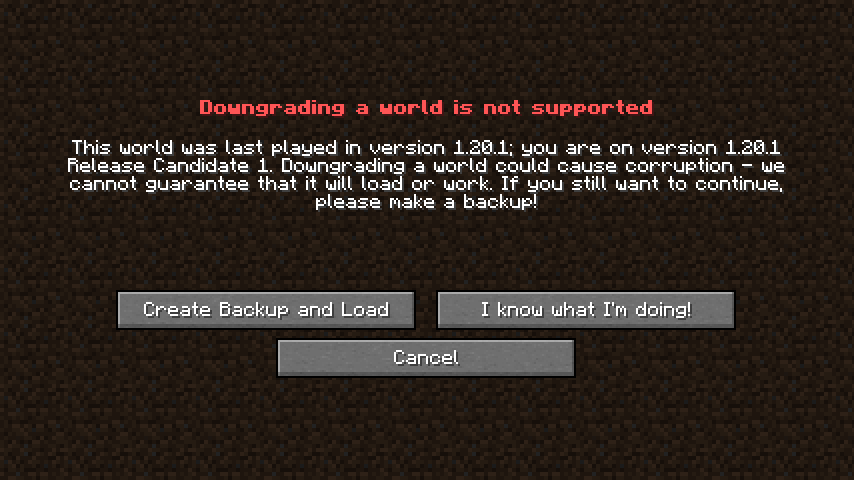
The downgrading screen.
In the singleplayer menu, if a world was last loaded in a version newer than the one being run, the version name of the world is displayed in red. When moving the mouse over the world, an exclamation mark appears to the left of the play button in the world icon on the left. While hovering over the world icon, the exclamation mark turns red and a tooltip appears with red text stating: "World was saved in a newer version, loading this world could cause problems!". Trying to load the world causes a screen to pop up with text that says:
This world was last played in version <version-of-the-world-last-loaded>; you are on version <current-version>. Downgrading a world could cause corruption — we cannot guarantee that it will load or work. If you still want to continue, please make a backup!
The screen also has three buttons: "Create Backup and Load", "I know what I'm doing!", and "Cancel". The actions when clicking are shown in the table below.
| Key | Action |
|---|---|
| Create Backup and Load | Creates a backup and then proceeds to load the world. |
| I know what I'm doing! | Opens the world without making a backup. |
| Cancel | Takes the user back to the single player menu screen. |
When downgrading a world, the version of the world when it was last loaded will change to the current version.
Benefits
- Get old items that used to be craftable, but are now uncraftable, like enchanted golden apples before 1.9 and petrified oak slabs before 1.3.
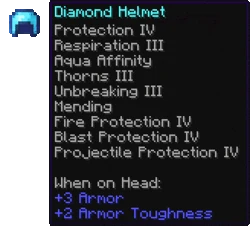
- Obtaining "god armor", a maxed out armor set with all types of Protection, which was only obtainable from 1.14 to 1.14.2.
- Execute duplication glitches that are patched in latest versions but are still working in older versions.
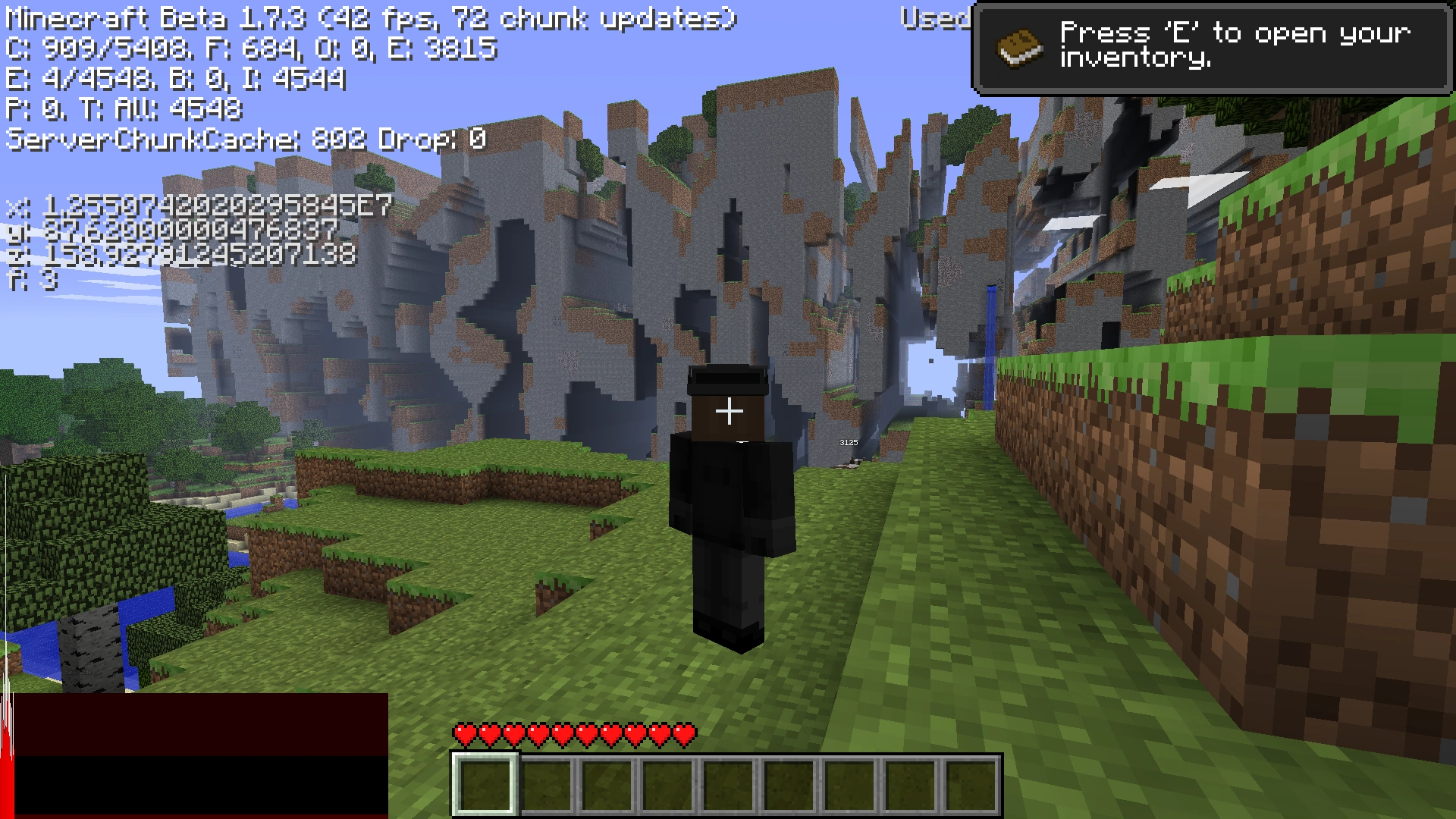
- Be able to see old glitches such as the Far Lands.
- Update Suppression, a glitch that existed before 1.19, mainly used to create sliced portals (portals without the obsidian frame).
- Do weird things such as place water in the Nether.
Consequences
The consequences of downgrading a world are of follows:
- Any loaded chunks in the world update to the new chunks.
- Any blocks, items, entities, enchantments, effects, particles, sounds, biomes, banner patterns and advancements that don't exist in that version are removed from the world.
- Downgrading a world can cause the world to corrupt, lose data, and possibly crash.
- Makes selected chunks in the world have strange rigid borders.
- Some buildings/structures you made can be erased from existence, note that some will convert to their older version, such as villages.
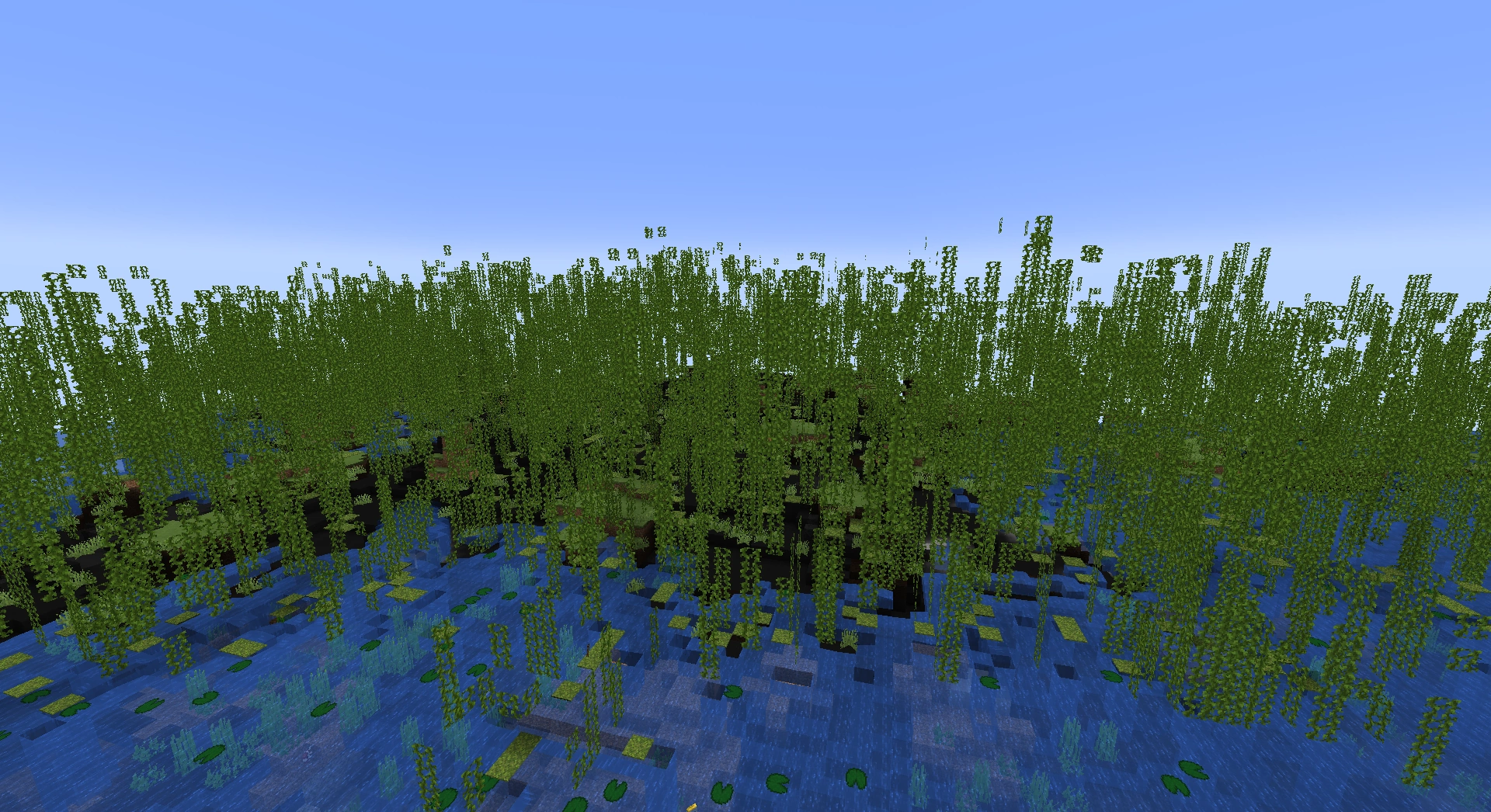
- Biomes can change, commonly when a biome existed in one version, but not the other, such as the mangrove swamp.
- Even upgrading back to the version the world was originally created in will not give everything that was lost back, such as enchantments.
- Floating things that shouldn't float such as vines, can appear, such as when a mangrove swamp is brought to 1.18.
- Spawn will significantly change, since spawn chunks (the 4 chunks centered around spawn) are always loaded even if you're very far away. Also areas with running chunk loaders will get affected. This means that farms/buildings that are constructed in these areas will get wiped out.
Steps to downgrade your world
For example, if you're on version 1.19 and want to get infinite enchanted golden apples, don't directly downgrade the world to version 1.8. Instead, set your render distance to the lowest, go around 200 blocks away from spawn and then downgrade your world to a version after 1.8 but before the latest version (for example, 1.13-1.15). This is required so that the world shows up on the 1.8 world selection menu. Then go to version 1.8 and craft your enchanted golden apples.
Be careful when interacting with items and blocks from newer versions. Items in your inventory and chests that don't exist yet will not appear, and blocks from newer versions will be replaced with air. These changes should only last until you go back to a newer version, but if you interact with those inventory slots or chunks, the game will overwrite those slots and chunks, and you will lose those items and blocks.
Gallery
-
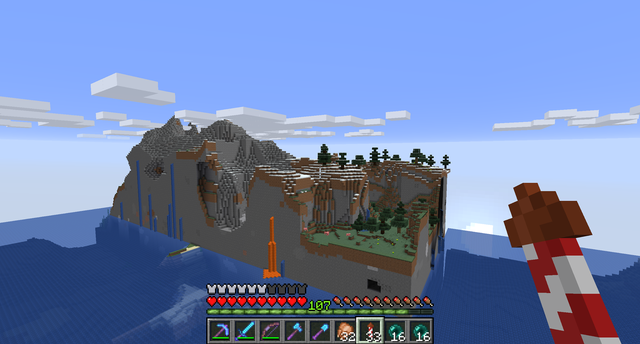
 An example of a chunk error due to downgrading.
 -
 Before 1.14.3, players can put multiple types of Protection on one armor piece, thereby reducing 80% of all damage types, something which was impossible before.
 -
 Able to see features only present in older versions of the game. Seen are the Far Lands, a terrain generation glitch that only existed from Infdev until Beta 1.7.3, in Beta 1.8, they are completely removed.
 -


References